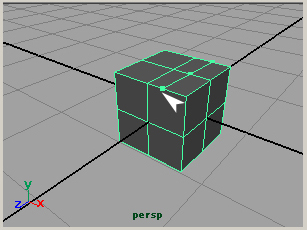
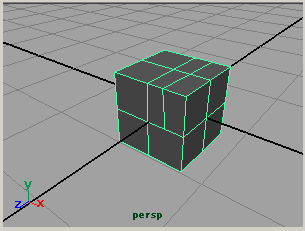
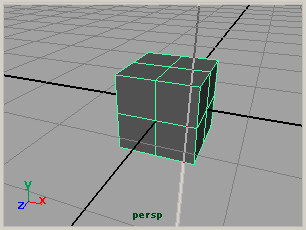
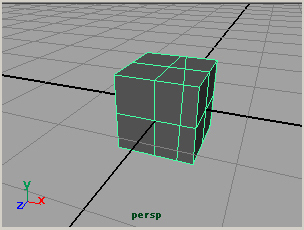
<?xml version="1.0" encoding="UTF-8"?>
<feed xmlns="http://www.w3.org/2005/Atom">
    <title>maya blog: maya tutorials and maya information: 3D CG labo</title>
    <link rel="alternate" type="text/html" href="http://www.imanishi.com/mayablog_en/" />
    <link rel="self" type="application/atom+xml" href="http://www.imanishi.com/mayablog_en/atom.xml" />
    <id>tag:www.imanishi.com,2008-07-03:/mayablog_en//5</id>
    <updated>2009-03-05T06:57:37Z</updated>
    <subtitle>autodesk maya tutorials and maya information ... http://www.imanishi.com/mayablog_en/</subtitle>
    <generator uri="http://www.sixapart.com/movabletype/">Movable Type 4.1</generator>

<entry>
    <title> Maya FAQ: How can I read a higher version of maya scene file?</title>
    <link rel="alternate" type="text/html" href="http://www.imanishi.com/mayablog_en/2009/03/maya-faq-how-can-i-read-a-high.html" />
    <id>tag:www.imanishi.com,2009:/mayablog_en//5.200</id>

    <published>2009-03-04T04:13:21Z</published>
    <updated>2009-03-05T06:57:37Z</updated>

    <summary>How to rewrite a ASCII file of Maya
and to read by the lower version of Maya.</summary>
    <author>
        <name>imanishiEn</name>
        <uri>http://www.imanishi.com/</uri>
    </author>
    
        <category term="maya" scheme="http://www.sixapart.com/ns/types#category" />
    
        <category term="mayaFAQ" scheme="http://www.sixapart.com/ns/types#category" />
    
    <category term="scenefile　binary　ascii" label="scene file　Binary　ASCII" scheme="http://www.sixapart.com/ns/types#tag" />
    
    <content type="html" xml:lang="en" xml:base="http://www.imanishi.com/mayablog_en/">
        <![CDATA[In this tutorial, I explain a method to rewrite a ASCII file of Maya<br />
and to read by a lower version of Maya.<br />]]>
        <![CDATA[<br />
<hr />
<br />
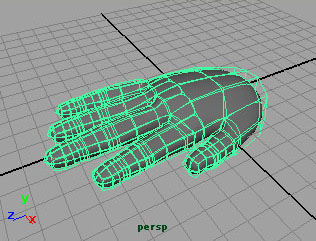
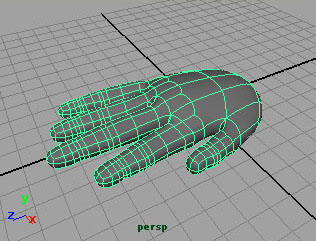
In Maya, there are two types of the scene file.<br />
<strong>.mb</strong>　Maya Binary<br />
<strong>.ma</strong>　Maya ASCII<br />
<br />You can't read the higher version of .mb type scene file.<br />
<br />
<img src="http://www.imanishi.com/mayablog/mayaFaq01/mbma01.jpg" alt="maya tutorials scene file binary ascii" /><br />
In higher version of Maya, select<br />
<strong>File > Save Scene</strong><br />
save your file as .ma type.<br />
<br />
<img src="http://www.imanishi.com/mayablog/mayaFaq01/mbma02.jpg" alt="maya tutorials scene file binary ascii" /><br />
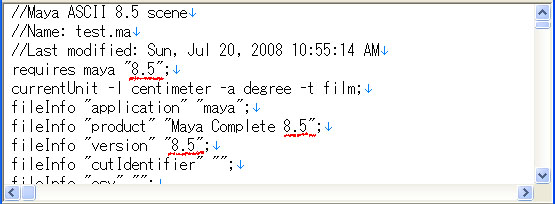
Open the <strong>.ma</strong> file with a text editor.<br />
The version number is written in three places. <br />
Rewrite them to the version that you want to read and save it. <br />
<br />
Open it with the lower version of Maya.<br />
<br />
<b>When the function provided only in the higher version is used, <br />
it is not a guarantee. </b><br />

<br />
<br />
]]>
    </content>
</entry>

<entry>
    <title>Maya FAQ: How do I get shadows?</title>
    <link rel="alternate" type="text/html" href="http://www.imanishi.com/mayablog_en/2009/02/maya-faq-how-do-i-get-shadows.html" />
    <id>tag:www.imanishi.com,2009:/mayablog_en//5.197</id>

    <published>2009-02-15T15:04:57Z</published>
    <updated>2009-02-15T15:14:23Z</updated>

    <summary>How to get shadows</summary>
    <author>
        <name>imanishiEn</name>
        <uri>http://www.imanishi.com/</uri>
    </author>
    
        <category term="maya" scheme="http://www.sixapart.com/ns/types#category" />
    
        <category term="mayaFAQ" scheme="http://www.sixapart.com/ns/types#category" />
    
    <category term="faqshadows" label="FAQ shadows" scheme="http://www.sixapart.com/ns/types#tag" />
    
    <content type="html" xml:lang="en" xml:base="http://www.imanishi.com/mayablog_en/">
        <![CDATA[There is no shadows. How do I get shadows?<br />]]>
        <![CDATA[<br />
<hr /> 
<img src="http://www.imanishi.com/mayablog/images/squareMini.jpg" alt="maya tutorials FAQ shadow" /> setting of the light<br />
<img src="http://www.imanishi.com/mayablog/mayaFaq01/shadow01.jpg" alt="maya tutorials FAQ shadow" /><br />
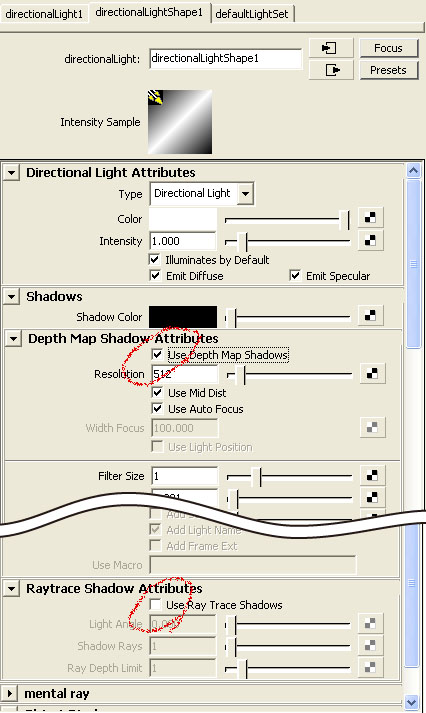
First of all, you should set the shadow to the light. <br />
Turn on<br />
<b>Use Depth Map Shadows</b><br />
or<br />
<b>Use Ray Trace Shadows</b><br />
<br />
They are turned off in the default.<br />
<br />
<br />
<img src="http://www.imanishi.com/mayablog/images/squareMini.jpg" alt="maya tutorials FAQ shadow" /> settings of the <b>Render Stats</b><br />
<img src="http://www.imanishi.com/mayablog/mayaFaq01/shadow02.jpg" alt="maya tutorials FAQ shadow" /><br />
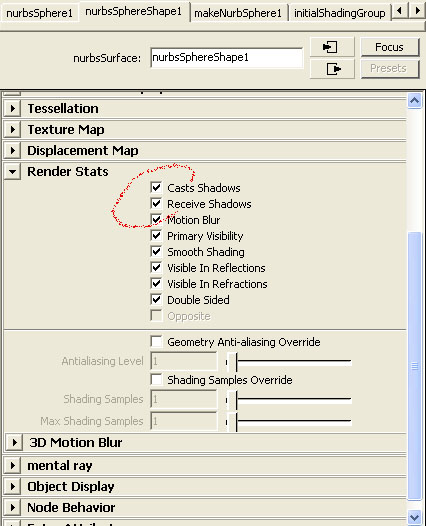
In <b>Render Stats</b> of the attributes of a object,<br />
there are <b>Casts Shadows</b> and <b>Receive Shadows</b> attributes.<br />
They are turned on in the default, you need not change them.<br />
If you turn off the attributes, there will be no shadows.<br />
<br />
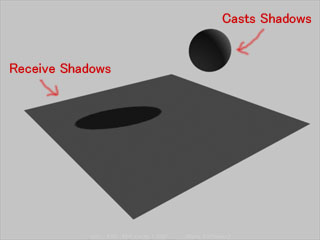
<img src="http://www.imanishi.com/mayablog/mayaFaq01/shadow03.jpg" alt="maya tutorials FAQ shadow" /><br />
The relation between Casts Shadows and Receive Shadows is as shown in the above figure. <br />
<br />
<br />
<img src="http://www.imanishi.com/mayablog/images/squareMini.jpg" alt="maya tutorials FAQ shadow" /> Are the objects in the shadows?<br />
<img src="http://www.imanishi.com/mayablog/mayaFaq01/shadow04.jpg" alt="maya tutorials FAQ shadow" /><br />
Two above-mentioned items are basic of the setting of the shadows. <br />
<br />
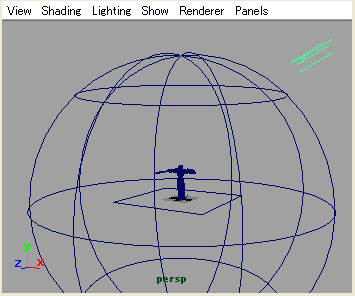
The shadows don't fall when the object on which the shadows are cast<br />
is in the shadows. <br />
<br />
For instance, if you make a big sphere as the sky, the shadows don't fall<br />
(or you can't see the shadows) in the objects put in the sphere.<br /> 
<br />
Turn off the <b>Casts Shadows</b> attribute of the sphere.<br />
<br />
<br />
]]>
    </content>
</entry>

<entry>
    <title>Maya tutorials: polygon modeling (4) symmetric modeling by the instance</title>
    <link rel="alternate" type="text/html" href="http://www.imanishi.com/mayablog_en/2009/02/maya-tutorials-polygon-modelin-3.html" />
    <id>tag:www.imanishi.com,2009:/mayablog_en//5.191</id>

    <published>2009-02-10T08:55:36Z</published>
    <updated>2009-04-09T01:55:31Z</updated>

    <summary>symmetric modeling by the instance</summary>
    <author>
        <name>imanishiEn</name>
        <uri>http://www.imanishi.com/</uri>
    </author>
    
        <category term="maya" scheme="http://www.sixapart.com/ns/types#category" />
    
        <category term="mayaModeling" scheme="http://www.sixapart.com/ns/types#category" />
    
    
    <content type="html" xml:lang="en" xml:base="http://www.imanishi.com/mayablog_en/">
        <![CDATA[Symmetry by subdiv proxy is done to the local coordinate of the object. <br />
You use the Instance option of Duplicate when you make the object symmetrical<br />
around the origin of the world coordinates.<br />]]>
        <![CDATA[<br />
<hr /> 
<p>
For the explanation about polygon modeling, please refer to<br />
<a href="http://www.imanishi.com/mayablog_en/2009/01/maya-tutorials-polygon-modelin.html">Maya tutorials: polygon modeling (1) basic operation</a><br />
<a href="http://www.imanishi.com/mayablog_en/2009/01/maya-tutorials-polygon-modelin-1.html">Maya tutorials: polygon modeling (2) operation of the polygon mesh</a><br />
<a href="http://www.imanishi.com/mayablog_en/2009/01/maya-tutorials-polygon-modelin-2.html">Maya tutorials: polygon modeling (3) Subdiv Proxy</a><br />
<br />
</p>
<hr /> 
<p>
<img src="http://www.imanishi.com/mayablog/images/squareMini.jpg" alt="maya tutorial polygon modeling symmetric instance" /> symmetry by subdiv proxy<br />
<img src="http://www.imanishi.com/mayablog/mayaPolygon/pF1.jpg" alt="maya tutorial polygon modeling symmetric instance" />
<br />
When you make the polygon mesh like the above figure symmetric by subdiv proxy,<br />
<br />
<img src="http://www.imanishi.com/mayablog/mayaPolygon/pF2.jpg" alt="maya tutorial polygon modeling symmetric instance" /><br />
the object is made symmetrical at the point where X coordinate is minimum.<br />
<br />
</p>
<hr /> 
<p>
<img src="http://www.imanishi.com/mayablog/images/squareMini.jpg" alt="maya tutorial polygon modeling symmetric instance" /> symmetry by instance
<br />
<img src="http://www.imanishi.com/mayablog/mayaPolygon/pF3.jpg" alt="maya tutorial polygon modeling symmetric instance" /><br />
<b>Proxy</b> &gt; <b>Subdiv Proxy</b> <img src="http://www.imanishi.com/mayablog/images/squareOption.jpg" alt="maya tutorial polygon modeling symmetric instance" /><br />
reset settings<br />
<br />
<img src="http://www.imanishi.com/mayablog/mayaPolygon/pF4.jpg" alt="maya tutorial polygon modeling symmetric instance" /><br />
make a subdiv proxy.<br />
<br />
<img src="http://www.imanishi.com/mayablog/mayaPolygon/pF6.jpg" alt="maya tutorial polygon modeling symmetric instance" /><br />
Select both the smooth mesh and the proxy mesh.<br />
<br />
<img src="http://www.imanishi.com/mayablog/mayaPolygon/pF5.jpg" alt="maya tutorial polygon modeling symmetric instance" /><br />
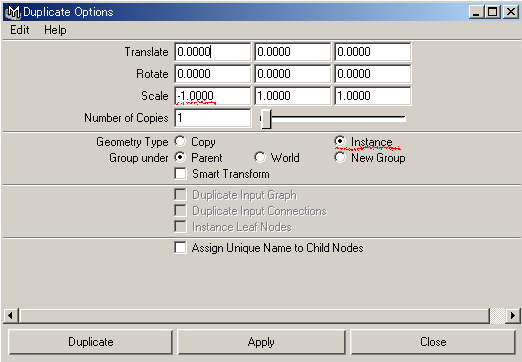
<b>Edit</b> &gt; <b>Duplicate Special</b> <img src="http://www.imanishi.com/mayablog/images/squareOption.jpg" alt="maya tutorial polygon modeling symmetric instance" /><br />
select <b>Instance</b> at <b>Geometry Type</b>, and set -1 to x scale.<br />
push the <b>Apply</b> button<br />
<br />
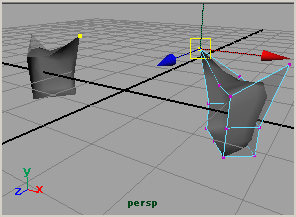
<img src="http://www.imanishi.com/mayablog/mayaPolygon/pF7.jpg" alt="maya tutorial polygon modeling symmetric instance" /><br /> 
They become symmetric around x=0. 
</p>
<br />
<hr />
<br />
Japanese article<br />
<a href="/mayablog/2008/04/maya-poly-symmetry.html">
Maya tutorials: polygon modeling (3) symmetric modeling by the instance</a><br />
<br />
]]>
    </content>
</entry>

<entry>
    <title>Maya tutorials: installing V-Ray demo</title>
    <link rel="alternate" type="text/html" href="http://www.imanishi.com/mayablog_en/2009/02/maya-tutorials-installing-vray.html" />
    <id>tag:www.imanishi.com,2009:/mayablog_en//5.190</id>

    <published>2009-02-07T10:50:17Z</published>
    <updated>2009-02-12T08:32:49Z</updated>

    <summary>installing V-Ray for Maya demo</summary>
    <author>
        <name>imanishiEn</name>
        <uri>http://www.imanishi.com/</uri>
    </author>
    
        <category term="maya" scheme="http://www.sixapart.com/ns/types#category" />
    
        <category term="mayaVray" scheme="http://www.sixapart.com/ns/types#category" />
    
    <category term="vray" label="V-Ray" scheme="http://www.sixapart.com/ns/types#tag" />
    
    <content type="html" xml:lang="en" xml:base="http://www.imanishi.com/mayablog_en/">
        <![CDATA[<img src="http://www.imanishi.com/mayablog/mayaVray/inst00.jpg" alt="maya tutorials V-Ray Rendering Installation" /><br />
<br />
I am going to explain how to install
<strong>V-Ray for Maya</strong> Demo<br />
]]>
        <![CDATA[<br />
<hr />
<p>
<img src="http://www.imanishi.com/mayablog/images/squareMini.jpg" alt="maya tutorials V-Ray Rendering Install" /> download the installer
<br />
Dowload the installer of V-Ray for Maya Demo at <a href="http://www.chaosgroup.com/en/2/index.html" target="_blank" />Chaos Group</a> site.<br />
Execute it, it will write Maya Plug-in to the Maya folder.<br />
<br />
</p>
<hr />
<p>
<img src="http://www.imanishi.com/mayablog/images/squareMini.jpg" alt="maya tutorials V-Ray Rendering Install" /> setting of Maya
<br />
<img src="http://www.imanishi.com/mayablog/mayaVray/inst02.jpg" alt="maya tutorials V-Ray Rendering Installation" /><br />
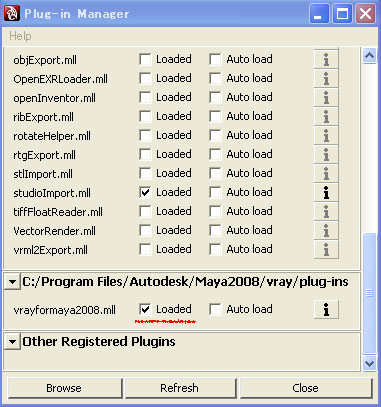
Open the Plug-in Manager<br />
<br />
<b>Windows</b> &gt; <b>Settings/Preferences</b> &gt; <b>Plug-in Manager</b><br />
<br />
click <b>Loaded</b> of vrayformaya2008.mll, then the plug-in will be loaded.<br />
<br />
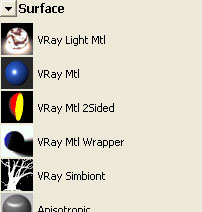
<img src="http://www.imanishi.com/mayablog/mayaVray/inst03.jpg" alt="maya tutorials V-Ray Rendering Installation" /><br />
Materials are added as shown in the above figure.<br />
<br />
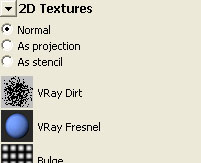
<img src="http://www.imanishi.com/mayablog/mayaVray/inst04.jpg" alt="maya tutorials V-Ray Rendering Installation" /><br />
2D Textures are added as shown in the above figure.<br />
<br />
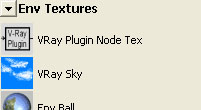
<img src="http://www.imanishi.com/mayablog/mayaVray/inst08.jpg" alt="maya tutorials V-Ray Rendering Installation" /><br />
Env Textures are added as shown in the above figure.<br />
<br />
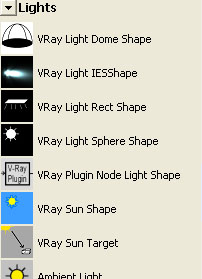
<img src="http://www.imanishi.com/mayablog/mayaVray/inst05.jpg" alt="maya tutorials V-Ray Rendering Installation" /><br />
Lights are added as shown in the above figure.<br />
<br />
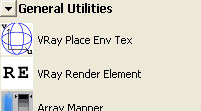
<img src="http://www.imanishi.com/mayablog/mayaVray/inst06.jpg" alt="maya tutorials V-Ray Rendering Installation" /><br />
Utilities are added as shown in the above figure.<br />
<br />
<img src="http://www.imanishi.com/mayablog/mayaVray/inst07.jpg" alt="maya tutorials V-Ray Rendering Installation" /><br />
Render Settings are added as shown in the above figure.<br />
<br />
</p>
<hr />
<p>
<img src="http://www.imanishi.com/mayablog/images/squareMini.jpg" alt="maya tutorials V-Ray Rendering Install" /> the limitations of the demo<br />
<br />
The limitations of V-Ray for Maya Demo is below.<br />
<br />
resolution 600x450<br />
lights 5<br />
objects 200<br />
the logo mark is rendered<br />
</p>
<br />
<br />
]]>
    </content>
</entry>

<entry>
    <title>Maya tutorials: polygon modeling (3) Subdiv Proxy</title>
    <link rel="alternate" type="text/html" href="http://www.imanishi.com/mayablog_en/2009/01/maya-tutorials-polygon-modelin-2.html" />
    <id>tag:www.imanishi.com,2009:/mayablog_en//5.188</id>

    <published>2009-01-28T08:27:18Z</published>
    <updated>2009-04-07T01:39:37Z</updated>

    <summary>smoothing of polygon mesh and usage of Subdiv Proxy.</summary>
    <author>
        <name>imanishiEn</name>
        <uri>http://www.imanishi.com/</uri>
    </author>
    
        <category term="maya" scheme="http://www.sixapart.com/ns/types#category" />
    
        <category term="mayaModeling" scheme="http://www.sixapart.com/ns/types#category" />
    
    
    <content type="html" xml:lang="en" xml:base="http://www.imanishi.com/mayablog_en/">
        <![CDATA[<img src="http://www.imanishi.com/mayablog/mayaPolygon/pD0.jpg" alt="maya tutorials polygon modeling subdiv proxy" /><br />
In this tutorial, I am going to explain the smoothing of the polygon mesh<br />
and the usage of the Subdiv Proxy.<br />]]>
        <![CDATA[<br />
<hr>
<p>
For the explanation about polygon modeling, please refer to<br />
<a href="http://www.imanishi.com/mayablog_en/2009/01/maya-tutorials-polygon-modelin.html">Maya tutorials: polygon modeling (1) basic operation</a><br />
<a href="http://www.imanishi.com/mayablog_en/2009/01/maya-tutorials-polygon-modelin-1.html">Maya tutorials: polygon modeling (2) operation of the polygon mesh</a><br />
<br />
</p>
<hr>
<p>
<img src="http://www.imanishi.com/mayablog/images/squareMini.jpg" alt="maya tutorials polygon modeling subdiv proxy" /> Smooth
<br />
<img src="http://www.imanishi.com/mayablog/mayaPolygon/pD1.jpg" alt="maya tutorials polygon modeling subdiv proxy" /><br />
Select a polygon mesh<br />
<b>Mesh</b> &gt; <b>Smooth</b><br />
<br />
<img src="http://www.imanishi.com/mayablog/mayaPolygon/pD2.jpg" alt="maya tutorials polygon modeling subdiv proxy" ><br />
The faces are subdivided and smoothed.<br />
<br />
<img src="http://www.imanishi.com/mayablog/mayaPolygon/pD3.jpg" alt="maya tutorials polygon modeling subdiv proxy" /><br />
In the Channel Box, you see the history of the commands,<br />
and you can specify the object's smoothness by setting<br />
the <b>Divisions</b> value.<br />
<br />
Or you can specify the <b>Divisions</b> value<br />
in the option window of the Smooth command.<br />
<b>Mesh</b> &gt; <b>Smooth</b> <img src="http://www.imanishi.com/mayablog/images/squareOption.jpg" width="9" height="9" border="0"><br />
<br />
</p><hr><p><img src="http://www.imanishi.com/mayablog/images/squareMini.jpg" alt="maya tutorials polygon modeling subdiv proxy" /> Subdiv Proxy<br />
<img src="http://www.imanishi.com/mayablog/mayaPolygon/pD4.jpg" alt="maya tutorials polygon modeling subdiv proxy" /><br />
Select a polygon mesh<br />
<b>Proxy</b> &gt; <b>Subdiv Proxy</b><br />
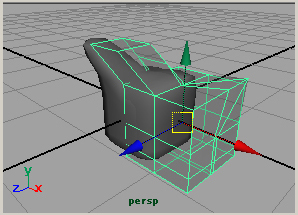
A smoothed mesh are generated in the proxy mesh.<br />
<br />
<img src="http://www.imanishi.com/mayablog/mayaPolygon/pD5.jpg" alt="maya tutorials polygon modeling subdiv proxy" /><br />
When you edit<br />
(transform, rotate, scale the vertices, edges, and extrude, cut faces etc)<br />
the outside polygon (proxy mesh),<br />
the inside polygon (smooth mesh) is similarly edited like being smooth. <br />
<br />
<img src="http://www.imanishi.com/mayablog/mayaPolygon/pD6.jpg" alt="maya tutorials polygon modeling subdiv proxy" /><br />
Because the inside polygon doesn't follow<br />
if you transform, rotate, scale the outside polygon in the object mode,<br />
<br />
<img src="http://www.imanishi.com/mayablog/mayaPolygon/pD7.jpg" alt="maya tutorials polygon modeling subdiv proxy" /><br />
you should transform, rotate, scale it in the component mode. <br />
<br />
<img src="http://www.imanishi.com/mayablog/mayaPolygon/pE3b.jpg" alt="maya tutorials polygon modeling subdiv proxy" /><br />
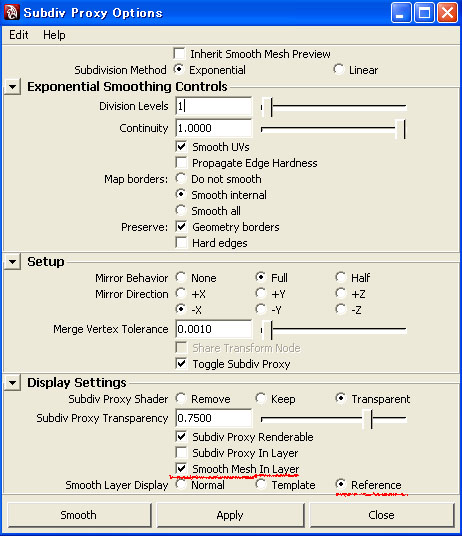
Open the option window<br />
<b>Proxy</b> &gt; <b>Subdiv Proxy</b> <img src="http://www.imanishi.com/mayablog/images/squareOption.jpg" alt="maya tutorials polygon modeling subdiv proxy" /><br />
<br />
If you turn on <b>Smooth Mesh In Layer</b><br />
the smooth mesh is put in a display layer.<br />
Moreover, <b>Reference</b> is set automatic and on,<br />
and the layer enters the state of the reference (R mark). <br />
<br />
</p><hr><p><img src="http://www.imanishi.com/mayablog/images/squareMini.jpg" alt="maya tutorials polygon modeling subdiv proxy" /> Subdiv Proxy that keeps symmetry<br />
<img src="http://www.imanishi.com/mayablog/mayaPolygon/pE1.jpg" alt="maya tutorials polygon modeling subdiv proxy" />  <br />
Select the faces  of the polygon mesh that are in -x,<br />
<br />
<img src="http://www.imanishi.com/mayablog/mayaPolygon/pE2.jpg" alt="maya tutorials polygon modeling subdiv proxy" />  <br />
delete them.<br />
Select the polygon mesh in the object mode,<br />
<br />
<img src="http://www.imanishi.com/mayablog/mayaPolygon/pE3.jpg" alt="maya tutorials polygon modeling subdiv proxy" ><br />
open the option window<br />
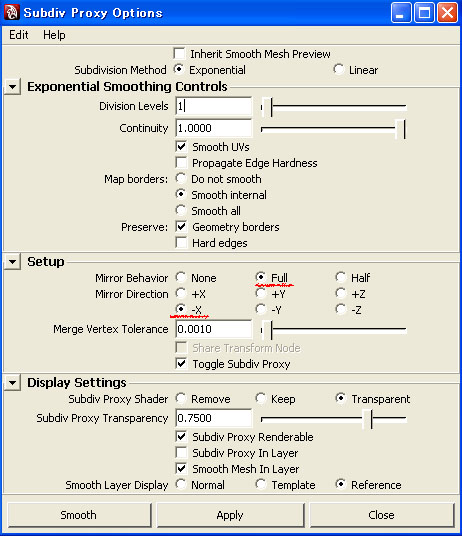
<b>Proxy</b> &gt; <b>Subdiv Proxy</b> <img src="http://www.imanishi.com/mayablog/images/squareOption.jpg" alt="maya tutorials polygon modeling subdiv proxy" /><br>
<br />
Select<br />
<b>Mirror Behavior</b>　Full<br />
<b>Mirror Direction</b>　-X<br />
Push the <b>Smooth</b> (or <b>Apply</b>) button.<br />
<br />
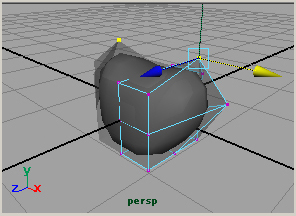
<img src="http://www.imanishi.com/mayablog/mayaPolygon/pE4.jpg" alt="maya tutorials polygon modeling subdiv proxy" /><br />
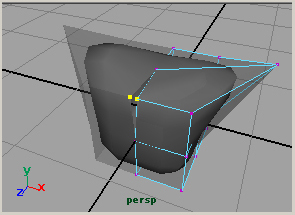
When you edit the outside polygon (proxy mesh),<br />
you can do modeling with symmetry kept. <br />
<br />
<img src="http://www.imanishi.com/mayablog/mayaPolygon/pE5.jpg" alt="maya tutorials polygon modeling subdiv proxy" /><br />
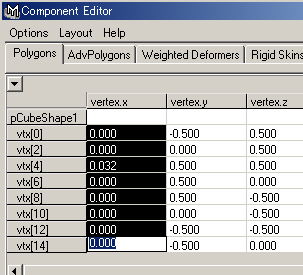
When the vertices that should be x=0 has shifted as shown in the above figure,<br />
you choose the vertices around x=0,<br />
<br />
<img src="http://www.imanishi.com/mayablog/mayaPolygon/pE6.jpg" alt="maya tutorials polygon modeling subdiv proxy" /><br />
open the Component Editor<br />
<b>Windows</b> &gt; <b>General Editors</b> &gt; <b>Component Editor...</b><br />
<br />
Specify the value of x coordinates for 0.<br />
<br />
</p><hr><p><img src="http://www.imanishi.com/mayablog/images/squareMini.jpg" alt="maya tutorials polygon modeling subdiv proxy" /> Smooth Mesh Preview<br />
<br />
In Maya 2008 (or later), you can display the polygon meshes smooth<br />
with pressing 1, 2, 3 keys.<br />
<br />
<img src="http://www.imanishi.com/mayablog/mayaPolygon/pE7.jpg" alt="maya tutorials polygon modeling subdiv proxy" /><br />
<b>1</b> key, original polygon.<br />
<br />
<img src="http://www.imanishi.com/mayablog/mayaPolygon/pE8.jpg" alt="maya tutorials polygon modeling subdiv proxy" /><br />
<b>2</b> key, original polygon (cage) and smooth.<br />
<br />
<img src="http://www.imanishi.com/mayablog/mayaPolygon/pE9.jpg" alt="maya tutorials polygon modeling subdiv proxy" /><br />
<b>3</b> key, smooth.<br />
<br />
</p>
<hr />
<br />
Japanese article<br />
<a href="http://www.imanishi.com/mayablog/2008/04/maya-poly-smooth.html">
Maya tutorials: polygon modeling (2) Subdiv Proxy</a><br />
<br />]]>
    </content>
</entry>

<entry>
    <title>Maya tutorials: polygon modeling (2) operation of the polygon mesh</title>
    <link rel="alternate" type="text/html" href="http://www.imanishi.com/mayablog_en/2009/01/maya-tutorials-polygon-modelin-1.html" />
    <id>tag:www.imanishi.com,2009:/mayablog_en//5.186</id>

    <published>2009-01-17T01:40:47Z</published>
    <updated>2009-06-15T01:52:45Z</updated>

    <summary>how to separate, extract, and combine the polygon mesh.</summary>
    <author>
        <name>imanishiEn</name>
        <uri>http://www.imanishi.com/</uri>
    </author>
    
        <category term="maya" scheme="http://www.sixapart.com/ns/types#category" />
    
        <category term="mayaModeling" scheme="http://www.sixapart.com/ns/types#category" />
    
    
    <content type="html" xml:lang="en" xml:base="http://www.imanishi.com/mayablog_en/">
        <![CDATA[<img src="http://www.imanishi.com/mayablog/mayaPolygon/pG3.jpg" alt="maya tutorial polygon modeling" /><br />
<br />
In this tutorial, I am going to explain how to separate, extract, and combine<br />
the polygon mesh.<br />]]>
        <![CDATA[<br />
<hr>
<p>
For the explanation about polygon modeling, please refer to<br />
<a href="http://www.imanishi.com/mayablog_en/2009/01/maya-tutorials-polygon-modelin.html">Maya tutorials: polygon modeling (1) basic operation</a><br />
<br />
</p>
<hr />
<img src="http://www.imanishi.com/mayablog/images/squareMini.jpg" alt="maya tutorial polygon modeling" > what is polygon mesh<br />
A polygon mesh is a unit of the polygon model selected in the object mode.<br />
It is unrelated whether the faces are continuous or not. <br />
(As for the NURBS object, the surface must be continuous unlike the polygon.)<br />
Polygon mesh and polygonal object are the same meanings.<br />
<br />
<img src="http://www.imanishi.com/mayablog/mayaPolygon/pG1.jpg" alt="maya tutorial polygon modeling" ><br />
<br />
<img src="http://www.imanishi.com/mayablog/mayaPolygon/pG0.jpg" alt="maya tutorial polygon modeling" ><br />
<br />
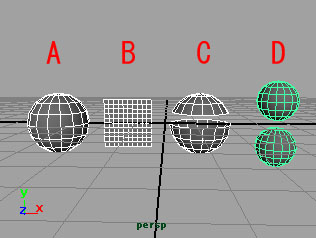
The above figure is the example of the polygon mesh.<br />
A is a polygon mesh where faces are continuous and has no border edges.<br />
B is a polygon mesh where faces are continuous and has border edges.<br />
C is a polygon mesh where faces are not continuous and has border edges.<br />
D is a polygon mesh where faces are not continuous and has no border edges.<br />
<br />
<img src="http://www.imanishi.com/mayablog/mayaPolygon/pG2.jpg" alt="maya tutorial polygon modeling" ><br />
<br />
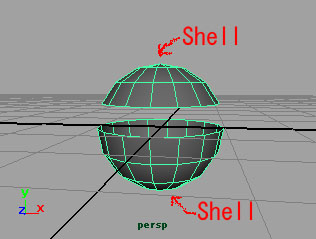
In Maya, a group of continuous faces in a polygon mesh is called a <b>Shell</b>.<br />
<br />
<hr /> 
<img src="http://www.imanishi.com/mayablog/images/squareMini.jpg" alt="maya tutorial polygon modeling" > separate polygon mesh<br />
<br />
<img src="http://www.imanishi.com/mayablog/mayaPolygon/pG4.jpg" alt="maya tutorial polygon modeling" ><br />
<br />
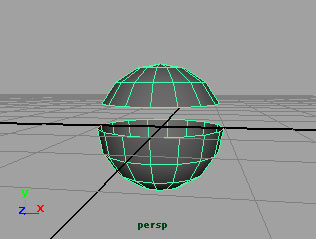
Select a polygon mesh with two Shell or more as shown in the above figure.<br /> 
Execute<br />
<b>Mesh</b> > <b>Separate</b><br />
then,<br />
<br />
<img src="http://www.imanishi.com/mayablog/mayaPolygon/pG5.jpg" alt="maya tutorial polygon modeling"  ><br />
<br />
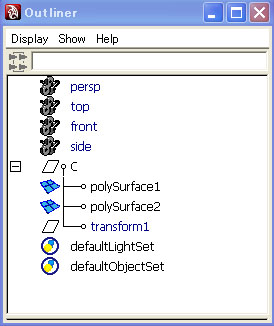
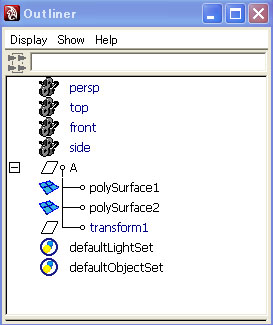
you will see the Outliner like the above figure. <br />
The two Shells are separated to two polygon meshes. <br />
<br />
The <i>transform1</i> is the history of the command.<br />
If you delete the history with<br /> 
<b>Edit</b> > <b>Delete by Type</b> > <b>History</b><br />
the <i>transform1</i> will be deleted.<br />
<br />
Or if you delete the <i>transform1</i>,<br />
then the history will be deleted.<br />
<br />
If you execute the <b>Separate</b> command to a polygon mesh which has only one Shell,<br />
it becomes an error. <br />
<br />
<hr /> 
<img src="http://www.imanishi.com/mayablog/images/squareMini.jpg" alt="maya tutorial polygon modeling" > extract polygon mesh<br />
<br />
<img src="http://www.imanishi.com/mayablog/mayaPolygon/pG8.jpg" alt="maya tutorial polygon modeling" ><br />
<br />
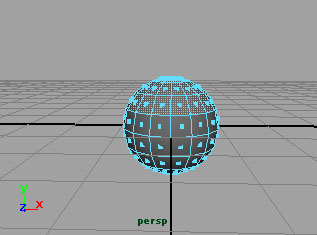
Select the faces of a polygon mesh<br />
<br />
<img src="http://www.imanishi.com/mayablog/mayaPolygon/pG6.jpg" alt="maya tutorial polygon modeling" ><br />
<br />
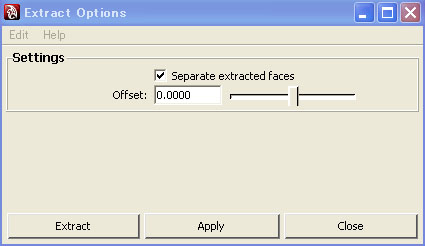
<b>Mesh</b> > <b>Extract</b> <img src="squareOption.jpg" alt="maya tutorial polygon modeling" ><br />
Select the<br />
<b>Separate extracted faces</b><br />
option ON (default),<br />
then the faces will be separated to another polygon mesh.<br />
<br />
(If you select all of the faces of a Shell,<br />
you get a same result of execution of the <b>Separate</b> command)<br />
<br />
If you select the option OFF, you get faces of the same polygon mesh.<br />
<br />
<img src="pG7.jpg" alt="maya tutorial polygon modeling" ><br />
<br />
If<br />
<b>Edit mesh</b> > <b>Keep Faces Together</b><br />
is ON, you get the extracted faces are continuous.<br />
<br />
If it is OFF,you get the all faces are not continuous.<br />
<br />
<img src="http://www.imanishi.com/mayablog/mayaPolygon/pG9.jpg" alt="maya tutorial polygon modeling" ><br />
<br />
The above figure is an execution result of the <b>Extract</b > command.<br /> 
<br />
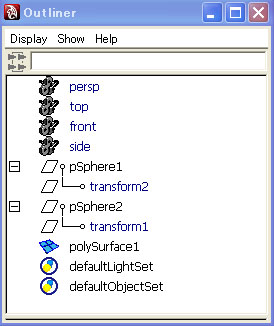
The <i>transform1</i> is the history of the command.<br />
If you delete the history with<br /> 
<b>Edit</b> > <b>Delete by Type</b> > <b>History</b><br />
the <i>transform1</i> will be deleted.<br />
<br />
Or if you delete the <i>transform1</i>,<br />
then the history will be deleted.<br />
<br />
<hr /> 
<img src="http://www.imanishi.com/mayablog/images/squareMini.jpg" alt="maya tutorial polygon modeling" > combine polygon mesh<br />
<br />Select two or more polygon meshes<br />
<b>Mesh</b> > <b>Combine</b><br />
they will be one polygon mesh.<br />
<br />
<img src="http://www.imanishi.com/mayablog/mayaPolygon/pG10.jpg" alt="maya tutorial polygon modeling" ><br />
<br />
The above figure is an execution result of the <b>Combine</b > command.<br /> 
<br />
The <i>transform1</i> and the <i>transform2</i> are the history of the command.<br />
If you delete the history with<br /> 
<b>Edit</b> > <b>Delete by Type</b> > <b>History</b><br />
the <i>transform1</i> and the <i>transform2</i> will be deleted.<br />
<br />
If you delete the <i>transform1</i> and the <i>transform2</i>,<br />
then the polygon mesh will be deleted.<br />
You may delete the history first. <br />
<br />
<br />
Japanese article<br />
<a href="http://www.imanishi.com/mayablog/2009/06/maya-poly-separate.html">
Maya tutorials: polygon modeling (4) operation of the polygon mesh</a><br />
<br />]]>
    </content>
</entry>

<entry>
    <title>Maya tutorials: polygon modeling (1) basic operation</title>
    <link rel="alternate" type="text/html" href="http://www.imanishi.com/mayablog_en/2009/01/maya-tutorials-polygon-modelin.html" />
    <id>tag:www.imanishi.com,2009:/mayablog_en//5.185</id>

    <published>2009-01-12T01:34:07Z</published>
    <updated>2009-04-02T08:10:48Z</updated>

    <summary>the basic operation of polygon modeling</summary>
    <author>
        <name>imanishiEn</name>
        <uri>http://www.imanishi.com/</uri>
    </author>
    
        <category term="maya" scheme="http://www.sixapart.com/ns/types#category" />
    
        <category term="mayaModeling" scheme="http://www.sixapart.com/ns/types#category" />
    
    
    <content type="html" xml:lang="en" xml:base="http://www.imanishi.com/mayablog_en/">
        <![CDATA[<img src="http://www.imanishi.com/mayablog/mayaPolygon/pA0.jpg" alt="maya tutorials polygon modeling" /><br />
In this tutorial, I am going to explain the basic operation of polygon modeling.<br />
This is chapter (1), it will continue up to chapter (4).<br />]]>
        <![CDATA[<p>
<br />
<hr /> 
<img src="http://www.imanishi.com/mayablog/images/squareMini.jpg" alt="maya tutorials polygon modeling" > polygon component<br />
<img src="http://www.imanishi.com/mayablog/mayaPolygon/pA1.jpg" alt="maya tutorials polygon modeling" /><br />
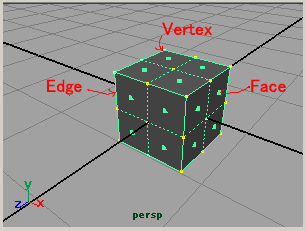
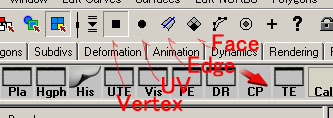
Polygon components are Vertex, Face, Edge, and UV.<br />
UV is texture coordinates.<br />
<br />
<img src="http://www.imanishi.com/mayablog/mayaPolygon/pA1b.jpg" alt="maya tutorials polygon modeling" /><br />
The masks corresponding to each Components are an above figure.<br />
Or you can select the Component with click <img src="../images/mrb.jpg" alt="maya tutorials polygon modeling" > on the object.<br />
<br />

<p>
<hr />
<img src="http://www.imanishi.com/mayablog/images/squareMini.jpg" alt="maya tutorials polygon modeling" > split face<br />
<img src="http://www.imanishi.com/mayablog/mayaPolygon/pA3.jpg" alt="maya tutorials polygon modeling" /><br />
Select the polygon object.<br />
<b>Edit Mesh</b> &gt; <b>Split Polygon Tool</b><br />
and click the center of the edges,<br />
<br />
<img src="http://www.imanishi.com/mayablog/mayaPolygon/pA2.jpg" alt="maya tutorials polygon modeling" /><br />
hit the <b>Enter</b> key,<br />
then it determined.<br />
<br />
<font color="#FF0000">In Maya, you can make five or more sided polygon. </font><br />
However, I recommend to make three-sided or four-sided polygon.<br />
Because the rendering will be beautiful.<br />
<br />
<img src="http://www.imanishi.com/mayablog/images/squareMini.jpg" alt="maya tutorials polygon modeling" > cut face<br />
<img src="http://www.imanishi.com/mayablog/mayaPolygon/pA4.jpg" alt="maya tutorials polygon modeling" />  <br />
Select the polygon object.<br />
<b>Edit Mesh</b> &gt; <b>Cut Faces Tool</b><br />
and click the place without the object.<br />
The line is displayed as shown in the above figure. <br />
You release the mouse for the line in the direction<br />
that you want to cut.<br /> 
<br />
<img src="http://www.imanishi.com/mayablog/mayaPolygon/pA5.jpg" alt="maya tutorials polygon modeling" /><br />
The faces are cut.<br />
<br />
<img src="http://www.imanishi.com/mayablog/mayaPolygon/pA6.jpg" alt="maya tutorials polygon modeling" /><br />
Selecting the faces not the object and<br />
<b>Cut Faces Tool</b><br />
<br />
<img src="http://www.imanishi.com/mayablog/mayaPolygon/pA7.jpg" alt="maya tutorials polygon modeling" /><br />
Then the selected faces are cut.<br />
<br />

<p>
<hr /> 
<img src="http://www.imanishi.com/mayablog/images/squareMini.jpg" alt="maya tutorials polygon modeling" > append face<br />
<img src="http://www.imanishi.com/mayablog/mayaPolygon/pB1.jpg" alt="maya tutorials polygon modeling" /><br />
Select the polygon object.<br />
<b>Edit Mesh</b> &gt; <b>Append to Polygon Tool</b><br />
and click the edge.<br />
Then small arrows appear as shown in the above figure.<br />
<br />
<img src="http://www.imanishi.com/mayablog/mayaPolygon/pB2.jpg" alt="maya tutorials polygon modeling" /><br />
You click one by one the edge that you want to add the face. <br />
<br />
<img src="http://www.imanishi.com/mayablog/mayaPolygon/pB3.jpg" alt="maya tutorials polygon modeling" /><br />
Hit the <b>Enter</b> key,<br />
then it determined.<br />
<br />

<p>
<hr /> 
<img src="http://www.imanishi.com/mayablog/images/squareMini.jpg" alt="maya tutorials polygon modeling" > Extrude Face<br />
<br />
<img src="http://www.imanishi.com/mayablog/mayaPolygon/pC1.jpg" alt="maya tutorials polygon modeling" /><br />
Select the face that you want to extrude<br />
<b>Edit Mesh</b> &gt; <b>Extrude</b><br />
Then a manipulator like the above figure is displayed. <br />
<br />
<img src="http://www.imanishi.com/mayablog/mayaPolygon/pC2.jpg" alt="maya tutorials polygon modeling" /><br />
The face is pushed out by operating the manipulator. <br />
<br />
<img src="http://www.imanishi.com/mayablog/mayaPolygon/pC3.jpg" alt="maya tutorials polygon modeling" /><br />
When you select two or more faces and do <b>Extrude</b>,<br />
if <b>Edit Mesh</b> &gt; <b>Keep Faces Together</b> is on,<br />
then faces are pushed out together as the above.<br />
<br />
<img src="http://www.imanishi.com/mayablog/mayaPolygon/pC4.jpg" alt="maya tutorials polygon modeling" /><br />
If <b>Edit Mesh</b> &gt; <b>Keep Faces Together</b> is off,<br />
then faces are individually pushed out as the above.
<br />
<hr />
<br />
Japanese article<br />
<a href="http://www.imanishi.com/mayablog/2009/04/maya-polygona.html">
Maya tutorials: polygon modeling (1) basic operation</a><br />
<br />
]]>
    </content>
</entry>

<entry>
    <title>Maya tutorials: twinkle effects</title>
    <link rel="alternate" type="text/html" href="http://www.imanishi.com/mayablog_en/2009/01/maya-tutorials-twinkle-effects.html" />
    <id>tag:www.imanishi.com,2009:/mayablog_en//5.184</id>

    <published>2009-01-08T11:12:40Z</published>
    <updated>2009-01-09T01:28:34Z</updated>

    <summary>how to make twinkling effects</summary>
    <author>
        <name>imanishiEn</name>
        <uri>http://www.imanishi.com/</uri>
    </author>
    
        <category term="maya" scheme="http://www.sixapart.com/ns/types#category" />
    
        <category term="mayaDynamicsEffects" scheme="http://www.sixapart.com/ns/types#category" />
    
    <category term="twinkleeffectsparticlelight" label="twinkle effects particle light" scheme="http://www.sixapart.com/ns/types#tag" />
    
    <content type="html" xml:lang="en" xml:base="http://www.imanishi.com/mayablog_en/">
        <![CDATA[<object classid="clsid:D27CDB6E-AE6D-11cf-96B8-444553540000" codebase="http://download.macromedia.com/pub/shockwave/cabs/flash/swflash.cab#version=6,0,29,0" width="200" height="150">
  <param name="movie" value="http://www.imanishi.com/mayablog/mayaFaq02/kira.swf" />
  <param name="quality" value="high" />
  <embed src="http://www.imanishi.com/mayablog/mayaFaq02/kira.swf" quality="high" pluginspage="http://www.macromedia.com/go/getflashplayer" type="application/x-shockwave-flash" width="200" height="150">
</object>
<br />
In this tutorial, I am going to explain how to make twinkling effects.<br />
I explain the method of making twinkling effects from Shader<br />
and the method of making from light. <br />
]]>
        <![CDATA[<br />
<hr />
<p>
<img src="http://www.imanishi.com/mayablog/images/squareMini.jpg" alt="maya tutorials twinkle effects shader particle" > shader for particles and objects<br />
<img src="http://www.imanishi.com/mayablog/mayaFaq02/kira01.jpg" alt="maya tutorials twinkle effects shader particle" /><br />
Assign a material to the object,<br />
set over 0 value to the <b>Glow Intensity</b>.<br />
(Any material is good if there is <b>Glow Intensity</b>)<br />
<br />
<img src="http://www.imanishi.com/mayablog/mayaFaq02/kira02.jpg" alt="maya tutorials twinkle effects shader particle" /><br />
In this case, I assigned a <b>Blinn</b> material to a sphere object.<br />
The above figure is an rendered image. . <br />
<br />
<img src="http://www.imanishi.com/mayablog/mayaFaq02/kira03.jpg" alt="maya tutorials twinkle effects shader particle" /><br />
There is the <i>shaderGlow1</i> in <b>Hypershade</b>,<br />
double-click it and open the Attribute Editor.<br />
<br />
<img src="http://www.imanishi.com/mayablog/mayaFaq02/kira06.jpg" alt="maya tutorials twinkle effects shader particle" /><br />
The <i>shaderGlow1</i> has two group of the <b>Glow Attributes</b> and the <b>Halo Attributes</b><br />
<br />
<img src="http://www.imanishi.com/mayablog/mayaFaq02/kira04.jpg" alt="maya tutorials twinkle effects shader particle" /><br />
Set<br />
<b>Glow Type</b> - <b>Linear</b><br />
<b>Halo Type</b> - <b>None</b><br />
you get the effects by only <b>Glow</b>.<br />
The above figure is an rendered image. <br />
<br />
<img src="http://www.imanishi.com/mayablog/mayaFaq02/kira05.jpg" alt="maya tutorials twinkle effects shader particle" /><br />
Set<br />
<b>Glow Type</b> - <b>None</b><br />
<b>Halo Type</b> - <b>Linear</b><br />
you get the effects by only <b>Halo</b>.<br />
The above figure is an rendered image. <br />
<br />
The shine near the shining object is the <b>Glow</b>. <br />
Parting from the object and extending is the <b>Halo</b>. <br />
<br />
<img src="http://www.imanishi.com/mayablog/mayaFaq02/kira07.jpg" alt="maya tutorials twinkle effects shader particle" /><br />
In this case, we set<br />
<b>Glow Type</b> - <b>None</b><br />
<b>Halo Type</b> - <b>Linear</b><br />
and we will set the attributes of <b>Halo</b>.<br />
(Because Glow and Halo of the <i>shaderGlow1</i> have the same attribute,<br />
you may set it by either.)<br />
<br />
The attributes are the following.<br />
<b>Star Points</b> - the number of points on the star<br />
<b>Halo Intensity</b> - the brightness of halo<br />
<b>Halo Spread</b>  - the size of the halo<br />
<b>Halo Eccentricity</b> - the brightness of halo<br />
<b>Halo Star Level</b>  - set over 0 value, halo will be star shape<br />

<br />
<img src="http://www.imanishi.com/mayablog/mayaFaq02/kira08.jpg" alt="maya tutorials twinkle effects shader particle" /><br />
<b>Star Points</b>　4<br />
<b>Halo Intensity</b>　5<br />
<b>Halo Spread</b>　0.3<br />
<b>Halo Eccentricity</b>　0.1<br />
<b>Halo Star Level</b>　0.7<br />
<br />
<img src="http://www.imanishi.com/mayablog/mayaFaq02/kira09.jpg" alt="maya tutorials twinkle effects shader particle" /><br />
<b>Star Points</b>　4<br />
<b>Halo Intensity</b>　5<br />
<b>Halo Spread</b>　0.3<br />
<b>Halo Eccentricity</b>　0.1<br />
<b>Halo Star Level</b>　2<br />
The star shape changed.<br />
<br />
<img src="http://www.imanishi.com/mayablog/mayaFaq02/kira10.jpg" alt="maya tutorials twinkle effects shader particle" /><br />
<b>Star Points</b>　6<br />
<b>Halo Intensity</b>　5<br />
<b>Halo Spread</b>　0.3<br />
<b>Halo Eccentricity</b>　0.1<br />
<b>Halo Star Level</b>　2<br />
The star points became 6. <br />
<br />
<img src="http://www.imanishi.com/mayablog/mayaFaq02/kira11.jpg" alt="maya tutorials twinkle effects shader particle" /><br />
<br />
<img src="http://www.imanishi.com/mayablog/mayaFaq02/kira12.jpg" alt="maya tutorials twinkle effects shader particle" /><br />
If you put the check in <b>Hide Source</b> of the material,<br />
the rendering only of the halo effect is done. <br />
<br />
<object classid="clsid:D27CDB6E-AE6D-11cf-96B8-444553540000" codebase="http://download.macromedia.com/pub/shockwave/cabs/flash/swflash.cab#version=6,0,29,0" width="200" height="150">
  <param name="movie" value="http://www.imanishi.com/mayablog/mayaFaq02/kira.swf" />
  <param name="quality" value="high" />
  <embed src="http://www.imanishi.com/mayablog/mayaFaq02/kira.swf" quality="high" pluginspage="http://www.macromedia.com/go/getflashplayer" type="application/x-shockwave-flash" width="200" height="150">
</object>
<br />
You do the same setting for the particles. <br />
I set <b>Blobby Surface</b> to the <b>Particle Render Type</b>, and assigned a <b>Blinn</b> material,<br />
the above figure is an rendered image. <br />
<br />
Please refer to the following for the setting of the particles. <br />
<a href="http://www.imanishi.com/mayablog_en/2008/08/maya-tutorialbasics-of-particl.html">Maya Tutorials:basics of particle</a><br />
<br />
You can set the shaderGlow1 only by one per one scene. <br />
If you want to set two or more shape of the glow or halo,<br />
you should individually do rendering, and composite them later.<br />
<br />
<br />
</p>
<hr />
<p>
<img src="http://www.imanishi.com/mayablog/images/squareMini.jpg" alt="maya tutorials twinkle effects shader particle" > light effects<br />
With <b>Point Light</b>, <b>Spot Light</b>, <b>Area Light</b><br />
you can make light effects by setting<br />
<b>Light Effects</b> &gt; <b>Light Glow</b><br />
<br />
<img src="http://www.imanishi.com/mayablog/mayaFaq02/kira13.jpg" alt="maya tutorials twinkle effects shader particle" /><br />
Click <img src="http://www.imanishi.com/mayablog/images/squareChecker.jpg" alt="maya tutorials twinkle effects shader particle" > of <b>Light Glow</b><br />
<br />
<img src="http://www.imanishi.com/mayablog/mayaFaq02/kira14.jpg" alt="maya tutorials twinkle effects shader particle" /><br />
Then <i>opticalFX1</i> will be made.<br />
<br />
It is set in default as follows,<br />
<b>Glow Type</b> - <b>Linear</b><br />
<b>Halo Type</b> - <b>None</b><br />
<b>Glow Star Level</b> - 3<br />
<br />
It will be rendered as a star shape.<br />
The difference between <b>Glow</b> and <b>Halo</b> is the same<br />
as the <i>shaderGlow1</i>. <br />
<br />
<img src="http://www.imanishi.com/mayablog/mayaFaq02/kira15.jpg" alt="maya tutorials twinkle effects shader particle" /><br />
<b>Star Points</b> - 4 (default)<br />
<br />
<img src="http://www.imanishi.com/mayablog/mayaFaq02/kira16.jpg" alt="maya tutorials twinkle effects shader particle" /><br />
<b>Star Points</b> - 6<br />
<br />
You cannot express the star with <b>Halo</b> <br />
because there is no <b>Star Level</b> attribute in the <b>Halo</b> of the light effects.<br />
<br />
</p>
<br />
<br />
]]>
    </content>
</entry>

<entry>
    <title>Maya tutorials: making eyeballs and building the materials (2) advanced method</title>
    <link rel="alternate" type="text/html" href="http://www.imanishi.com/mayablog_en/2009/01/maya-tutorials-making-eyeballs-1.html" />
    <id>tag:www.imanishi.com,2009:/mayablog_en//5.182</id>

    <published>2009-01-01T07:49:52Z</published>
    <updated>2009-01-12T07:28:39Z</updated>

    <summary>I explain a method that is easy to correspond to the change in the size of the iris and pupil.</summary>
    <author>
        <name>imanishiEn</name>
        <uri>http://www.imanishi.com/</uri>
    </author>
    
        <category term="maya" scheme="http://www.sixapart.com/ns/types#category" />
    
        <category term="mayaRendering" scheme="http://www.sixapart.com/ns/types#category" />
    
    <category term="eyeeyeballirispupilcorneasclera" label="eye eyeball iris pupil cornea sclera" scheme="http://www.sixapart.com/ns/types#tag" />
    
    <content type="html" xml:lang="en" xml:base="http://www.imanishi.com/mayablog_en/">
        <![CDATA[<img src="http://www.imanishi.com/mayablog/mayaEye/eye27.jpg" alt="maya tutorials eyeballs eye material modeling" /><br />
In this tutorial, I am going to explain a method of setting the material of eyeballs.<br />
It is a method that is easy to correspond to the change in the size of the iris and pupil. <br />]]>
        <![CDATA[<br />
<hr />
For the explanation about the basic method of making eyeballs, please refer to<br />
<a href="http://www.imanishi.com/mayablog_en/2008/12/maya-tutorials-making-eyeballs.html">Maya tutorials: making eyeballs and building its materials (1) simple method</a><br />
<br />
<p>
<img src="http://www.imanishi.com/mayablog/images/squareMini.jpg" alt="maya tutorials eyeballs eye material modeling" /> a method that has of generality<br />
The size of the iris and pupil greatly influences the character setting of the character. <br />
I explain a method of the modeling and setting of the material <br />
that changes the size of the iris and pupil easily.<br /> 
<br />
The materials are same as <a href="http://www.imanishi.com/mayablog_en/2008/12/maya-tutorials-making-eyeballs.html">Maya tutorials: making eyeballs and building its materials (1) simple method</a><br />
We use a <b>Layered Shader</b> for the material of the cornea and the sclera(white of the eye).<br />
It is made to correspond easily even if the size of the iris and pupil changes. <br />
<br />
I think that this method is effective to make the scene where a lot of characters appear. <br />
<br />
<img src="http://www.imanishi.com/mayablog/images/squareMini.jpg" alt="maya tutorials eyeballs eye material modeling" /> modeling<br />
<img src="http://www.imanishi.com/mayablog/mayaEye/eye11.jpg" alt="maya tutorials eyeballs eye material modeling" /><br />
<br />
<img src="http://www.imanishi.com/mayablog/mayaEye/eye12e.jpg" alt="maya tutorials eyeballs eye material modeling" /><br />
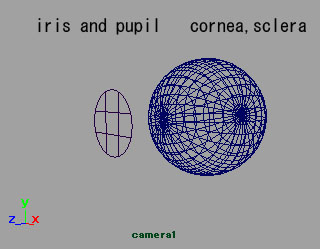
I made two parts. They are the iris and pupil, and the cornea and the sclera.<br />
<br />
<img src="http://www.imanishi.com/mayablog/images/squareMini.jpg" alt="maya tutorials eyeballs eye material modeling" /> the material of the iris and pupil<br />
<img src="http://www.imanishi.com/mayablog/mayaEye/eye13.jpg" alt="maya tutorials eyeballs eye material modeling" /><br />
<br />
The material of the iris and pupil is same as "(1) simple method".<br />
<br />
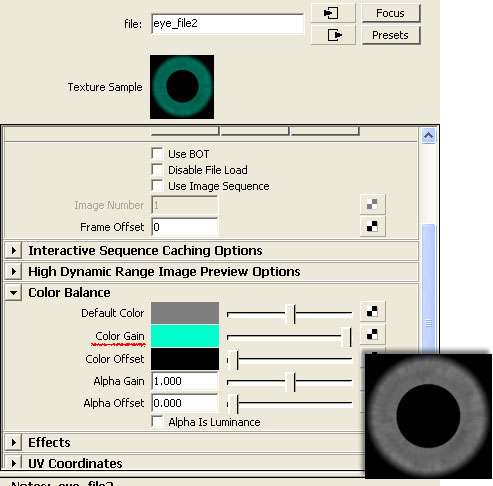
If you make the image material from black and white<br />
and set the <b>Color Gain</b> of the <b>File Texture</b>, <br />
you can change the color  easily. <br />
<br />

<img src="http://www.imanishi.com/mayablog/images/squareMini.jpg" alt="maya tutorials eyeballs eye material modeling" /> the material of the cornea and the sclera(white of the eye).<br />
<img src="http://www.imanishi.com/mayablog/mayaEye/eye14.jpg" alt="maya tutorials eyeballs eye material modeling" /><br />
Make a material of the cornea that is same as "(1) simple method".<br />
Assign it to a sphere and confirm the material.<br />
<br />
<img src="http://www.imanishi.com/mayablog/mayaEye/eye15.jpg" alt="maya tutorials eyeballs eye material modeling" /><br />
Make a material of the sclera that is same as "(1) simple method".<br />
Assign it to a sphere and confirm the material.<br />
<br />
<img src="http://www.imanishi.com/mayablog/mayaEye/eye16.jpg" alt="maya tutorials eyeballs eye material modeling" /><br />
Connect a <b>Ramp Texture</b> to the <b>Transparency</b> of the material of the sclera<br />
to make transparent part.<br />
<br />
<img src="http://www.imanishi.com/mayablog/mayaEye/eye17.jpg" alt="maya tutorials eyeballs eye material modeling" /><br />
The above figure was made transparent by <b>Ramp Texture</b>. <br />
(Set UVs if you use a polygon model)<br />
<br />
It is not transparent complete the part including the highlight and reflecting. <br />
You will connect the value in which <b>Ramp Texture</b> is reversed<br />
by using the <b>Reverse</b> utility. <br />
<br />
<img src="http://www.imanishi.com/mayablog/mayaEye/eye18.jpg" alt="maya tutorials eyeballs eye material modeling" /><br />
Display the connection of the material of the sclera in the <b>Work Area</b> of the <b>Hypershade</b>. <br />
(Select the material and click the <b>Input and Output Connection</b> button)<br />
<br />
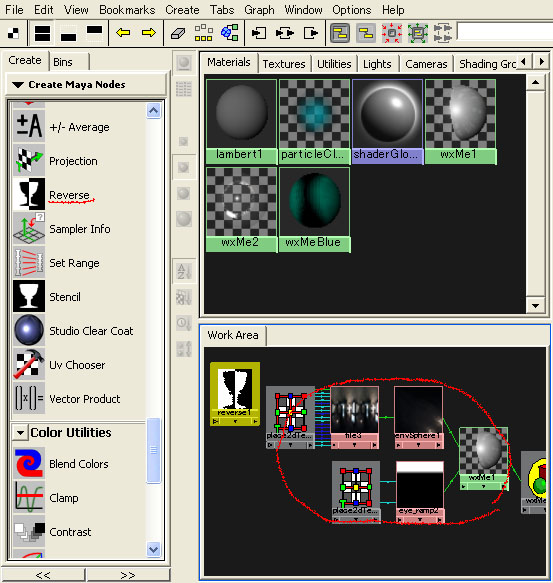
Click the <b>Reverse</b> in the <b>Create Maya Nodes</b> (the left area of the <b>Hypershade</b>),<br />
then a <b>Reverse</b> will appear in the <b>Work Area</b><br />
<br />
<img src="http://www.imanishi.com/mayablog/mayaEye/eye19.jpg" alt="maya tutorials eyeballs eye material modeling" /><br />
<br />
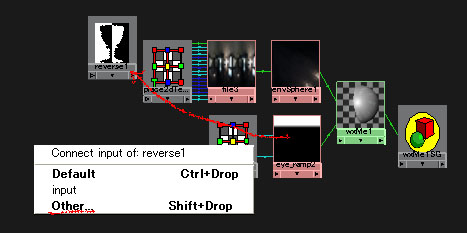
Drag and drop the <b>Ramp Texture</b> to the <b>Reverse</b> with <img src="http://www.imanishi.com/mayablog/images/mmb.jpg" alt="maya tutorials eyeballs eye material modeling" />.<br />
Then a window will open,  select <b>Other</b>.<br />
<br />
<img src="http://www.imanishi.com/mayablog/mayaEye/eye20.jpg" alt="maya tutorials eyeballs eye material modeling" /><br />
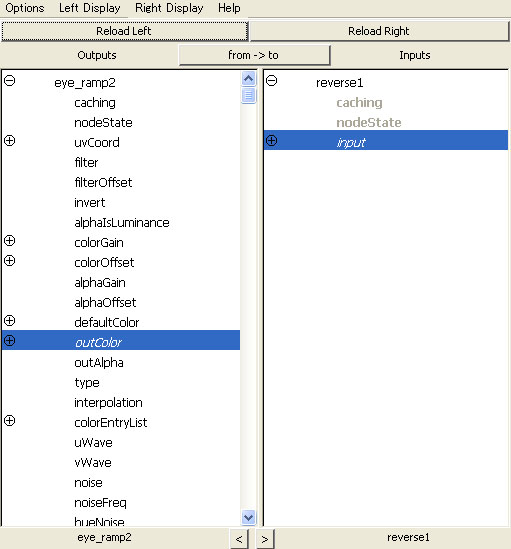
Then the <b>Connection Editor</b> will open, select <b>outColor</b> and <b>input</b>.<br />
<br />
<img src="http://www.imanishi.com/mayablog/mayaEye/eye21.jpg" alt="maya tutorials eyeballs eye material modeling" /><br />
<br />
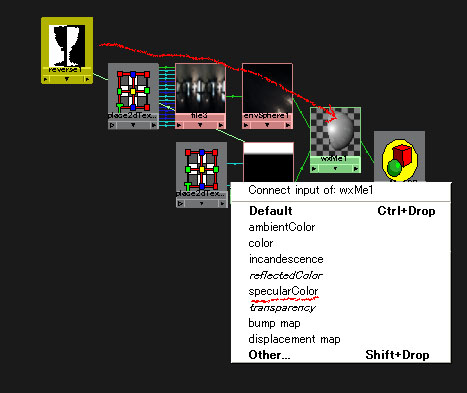
Drag and drop the <b>Revers</b> to the blinn material with <img src="http://www.imanishi.com/mayablog/images/mmb.jpg" alt="maya tutorials eyeballs eye material modeling" />.<br />
Then a window will open, select <b>specularColor</b>.<br />
<br />
<img src="http://www.imanishi.com/mayablog/mayaEye/eye22.jpg" alt="maya tutorials eyeballs eye material modeling" /><br />
The transparent part came off completely.<br />
<br />
<img src="http://www.imanishi.com/mayablog/mayaEye/eye23e.jpg" alt="maya tutorials eyeballs eye material modeling" /><br />
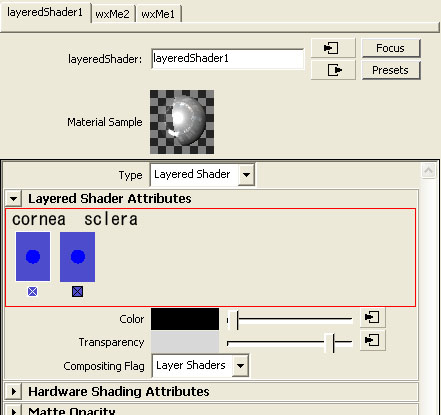
Make a <b>Layered Shader</b>, drag and drop the material of the cornea<br />
and the material of the sclera from the <b>Hypershade</b><br />
to the area which is enclosed in red with <img src="http://www.imanishi.com/mayablog/images/mmb.jpg" alt="maya tutorials eyeballs eye material modeling" />.<br />
<br />
Arrange it from the left in order of the cornea and the sclera. <br />
<br />
<img src="http://www.imanishi.com/mayablog/mayaEye/eye24.jpg" alt="maya tutorials eyeballs eye material modeling" /><br />
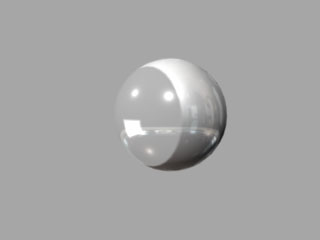
Assign the <b>Layered Shader</b> to the sphere.<br />
<br />
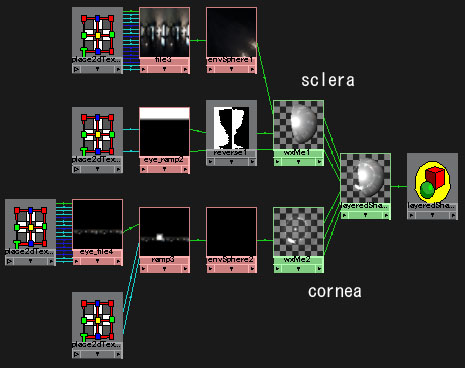
<img src="http://www.imanishi.com/mayablog/mayaEye/eye25e.jpg" alt="maya tutorials eyeballs eye material modeling" /><br />
The connection graph was shown in the above figure. <br />
<br />
<img src="http://www.imanishi.com/mayablog/mayaEye/eye26.jpg" alt="maya tutorials eyeballs eye material modeling" /><br />
Set the size of the iris and pupil on the scale of the modeling data. <br />
Adjust the range for the transparent area of the eyeball with the <b>Ramp Texture</b>.<br />

<br />
</p>]]>
    </content>
</entry>

<entry>
    <title>Maya tutorials: making eyeballs and building the materials (1) simple method</title>
    <link rel="alternate" type="text/html" href="http://www.imanishi.com/mayablog_en/2008/12/maya-tutorials-making-eyeballs.html" />
    <id>tag:www.imanishi.com,2008:/mayablog_en//5.181</id>

    <published>2008-12-18T08:14:44Z</published>
    <updated>2009-01-12T07:29:18Z</updated>

    <summary>how to make eyeballs</summary>
    <author>
        <name>imanishiEn</name>
        <uri>http://www.imanishi.com/</uri>
    </author>
    
        <category term="maya" scheme="http://www.sixapart.com/ns/types#category" />
    
        <category term="mayaRendering" scheme="http://www.sixapart.com/ns/types#category" />
    
    <category term="eyeeyeballmaterialmodeing" label="eye eyeball material modeing" scheme="http://www.sixapart.com/ns/types#tag" />
    
    <content type="html" xml:lang="en" xml:base="http://www.imanishi.com/mayablog_en/">
        <![CDATA[<img src="http://www.imanishi.com/mayablog/mayaEye/eye00.jpg" alt="maya tutorials eyeballs eye material modeling" /><br />
In this tutorial, I am going to explain how to make eyeballs (eyes),<br />
and how to set up their materials.
<br />]]>
        <![CDATA[<hr />
<p>
<img src="http://www.imanishi.com/mayablog/images/squareMini.jpg" alt="maya tutorials eyeballs eye material modeling" /> Outline<br />
<img src="http://www.imanishi.com/mayablog/mayaEye/eye02.jpg" alt="maya tutorials eyeballs eye material modeling" /><br />
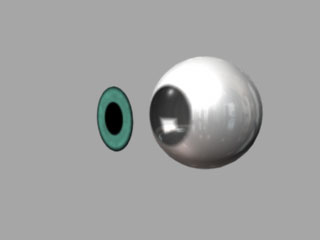
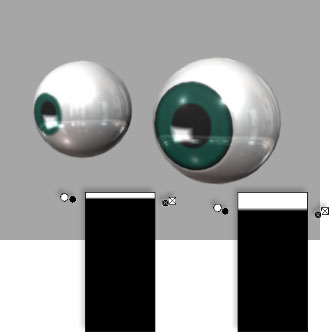
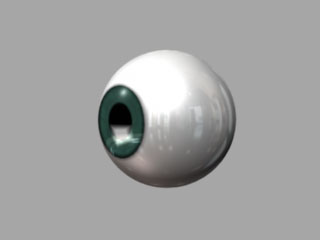
The above figure is rendering only of an eyeball. <br />
Rendering was executed with MayaSoftware with Raytracing on.<br />
<br />
It is necessary to note the contrast to show the eyeball vividly. <br />
I made a strong contrast in a bright part of the reflection of the cornea<br />
and a black part of the pupil. <br />
<br />
I think it is not necessary to make complete anatomy model.<br />
But I think that you should reproduce the structure of the reality to some degree. <br />
<br />
reference page of anatomy structure of eyeball
<br />
<a href="http://www.99main.com/~charlief/Blindness.htm" target="_blank">The Eye and Its Parts</a><br />
<br />
<br />
I explain a simple method in this chapter,<br />
and I explain an advanced method that has of generality in the following chapter. <br />
<br />
</p>
<hr />
<p>
<img src="http://www.imanishi.com/mayablog/images/squareMini.jpg" alt="maya tutorials eyeballs eye material modeling" /> modeling an eyeball<br />
<img src="http://www.imanishi.com/mayablog/mayaEye/eye04.jpg" alt="maya tutorials eyeballs eye material modeling" /><br />
<br />
<img src="http://www.imanishi.com/mayablog/mayaEye/eye03E.jpg" alt="maya tutorials eyeballs eye material modeling" /><br />
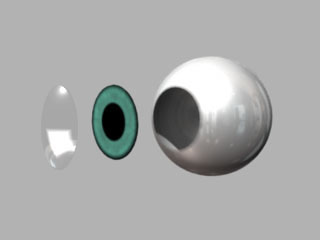
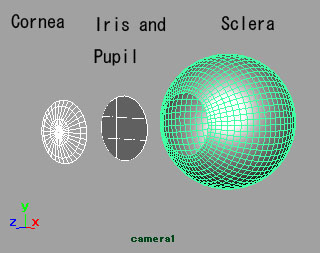
I did modeling separately for three parts of<br />
a cornea, an iris and pupil, a sclera (the white of the eye)<br />
<br />
I made the cornea and the sclera with the polygon sphere,<br />
and I made the iris and pupil with NURBS.<br />
<br />
<hr />
<img src="http://www.imanishi.com/mayablog/images/squareMini.jpg" alt="maya tutorials eyeballs eye material modeling" /> building the material of the cornea<br />
<img src="http://www.imanishi.com/mayablog/mayaEye/eye06E.jpg" alt="maya tutorials eyeballs eye material modeling" /><br />
The above is a rendering image only of the cornea. <br />
<br />
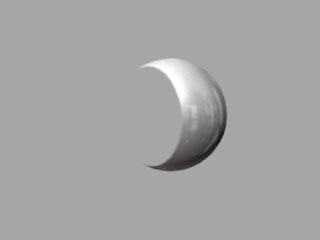
It is a completely transparent material.<br />
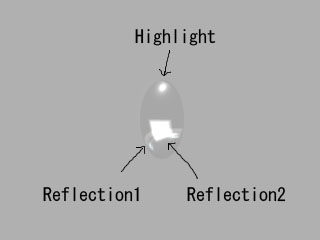
It has the highlight of <b>Specular</b> and two reflections of <b>Reflected Color</b>.<br />
<br />
I named the reflections <i>Reflection1</i> and <i>Reflection2</i>.<br />
<br />
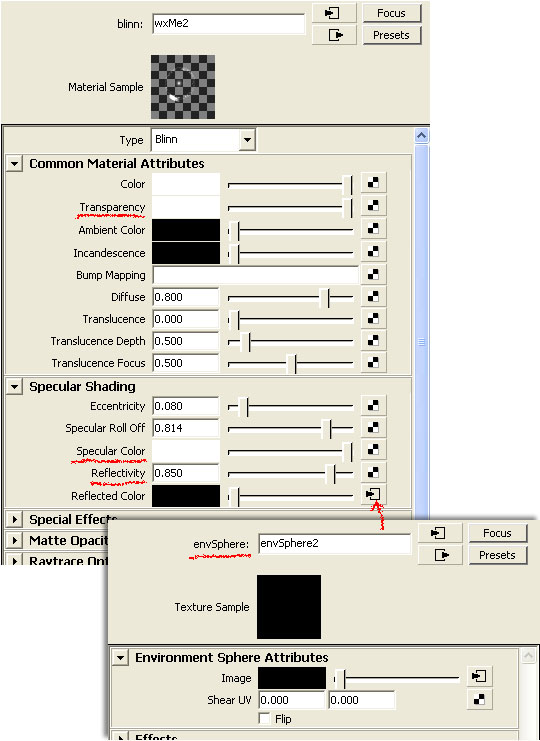
<img src="http://www.imanishi.com/mayablog/mayaEye/eye08.jpg" alt="maya tutorials eyeballs eye material modeling" /><br />
<br />
Assign a <b>Blinn</b> material to the cornea.<br />
Set maximum value to the <b>Transparency</b> .<br />
Set high value to the <b>Specular</b> and <b>Reflectivity</b><br />
<br />
Connect a <b>Env Sphere</b> of <b>Environment Texture</b> to the <b>Reflected Color</b>,<br />
and connect a <b>Ramp Texture</b> (the below) to the <b>Env Sphere</b>.<br />
<br />
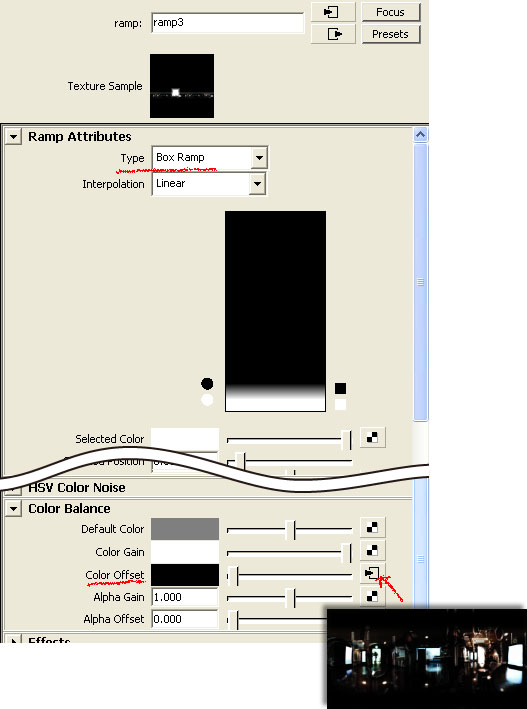
<img src="http://www.imanishi.com/mayablog/mayaEye/eye09.jpg" alt="maya tutorials eyeballs eye material modeling" /><br />
<br />
A <b>Ramp Texture</b> was connected to the <b>Env Sphere</b>.<br />
This is the <i>Reflection1</i>.<br />
Select <b>Box Ramp</b> of the <b>Ramp Texture</b>, it will be square shape.<br />
Adjust the place of the <i>Reflection1</i> with the place2DTexture. <br />
<br />
Connect a <b>File Texture</b> to the <b>Color Offset</b> of the <b>Ramp Texture</b>.<br />
Set a photograph image of reflection to the <b>File Texture</b>.<br />
This is the <i>Reflection2</i>.<br />
Adjust the place of the <i>Reflection2</i> with the place2DTexture.<br />
<br />
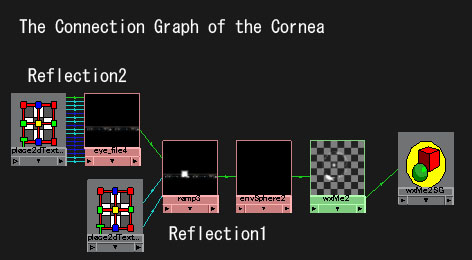
<img src="http://www.imanishi.com/mayablog/mayaEye/eye07E.jpg" alt="maya tutorials eyeballs eye material modeling" /><br />
The Connection Graph of the material of the cornea is shown <br />
in the above figure. <br />
<br />
You can make the <i>Reflection1</i> and the <i>Reflection2</i> as one picture file<br />
with Photoshop.<br />
<br />
In this example, it was divided into two like this. <br />
It is because you can easily adjust the position of<br />
the reflections individually with the place2DTextures.<br />
<br />
<img src="http://www.imanishi.com/mayablog/images/squareMini.jpg" alt="maya tutorials eyeballs eye material modeling" /> building the material of the iris and pupil<br />
<img src="http://www.imanishi.com/mayablog/mayaEye/eye05.jpg" alt="maya tutorials eyeballs eye material modeling" /><br />
Assign a <b>Blinn</b> (or <b>Rambert</b>) material to the iris and pupil.<br />
Set 0 to the <b>Specular</b>, it will have no highlight.<br />
Connect a <b>File Texture</b> to the <b>Color</b>.<br />
Set a image of an iris and pupil like the above to the <b>File Texture</b>.<br />
<br />
<img src="http://www.imanishi.com/mayablog/images/squareMini.jpg" alt="maya tutorials eyeballs eye material modeling" /> building the material of the sclera (the white of the eye)<br />
<img src="http://www.imanishi.com/mayablog/mayaEye/eye10.jpg" alt="maya tutorials eyeballs eye material modeling" /><br />
Assign a <b>Blinn</b> material to the sclera.<br />
Connect a <b>Env Sphere</b> of <b>Environment Texture</b> to the <b>Reflected Color</b>.<br />
Set a photograph image of reflection to the <b>File Texture</b>.<br />
<br />
<img src="http://www.imanishi.com/mayablog/mayaEye/eye02.jpg" alt="maya tutorials eyeballs eye material modeling" /><br />
Finished.<br />
<br />
It continues to the explanation of a method that has of generality. <br />
It is a method of changing the size of the iris and pupil easily. 
</ p>
<br />
<br />]]>
    </content>
</entry>

<entry>
    <title>Maya tutorials: making hair</title>
    <link rel="alternate" type="text/html" href="http://www.imanishi.com/mayablog_en/2008/12/maya-tutorials-making-hair.html" />
    <id>tag:www.imanishi.com,2008:/mayablog_en//5.179</id>

    <published>2008-12-03T07:17:58Z</published>
    <updated>2008-12-04T02:09:23Z</updated>

    <summary>making hair with Paint Effects.</summary>
    <author>
        <name>imanishiEn</name>
        <uri>http://www.imanishi.com/</uri>
    </author>
    
        <category term="maya" scheme="http://www.sixapart.com/ns/types#category" />
    
        <category term="mayaPaintEffects" scheme="http://www.sixapart.com/ns/types#category" />
    
    <category term="painteffectshair" label="Paint Effects hair" scheme="http://www.sixapart.com/ns/types#tag" />
    
    <content type="html" xml:lang="en" xml:base="http://www.imanishi.com/mayablog_en/">
        <![CDATA[<img src="http://www.imanishi.com/mayablog/mayaHair/hairC5.jpg" alt="maya tutorials paint effects hair" /><br />
In this tutorial, I explain two methods of making hair. <br />
It is a method of using transparent mapping on NURBS<br />
and using Paint Effects.]]>
        <![CDATA[<p>
<hr />
<img src="http://www.imanishi.com/mayablog/images/squareMini.jpg"  alt="maya tutorials paint effects hair" > hair with transparent mapping<br />
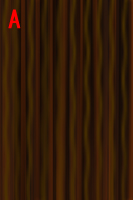
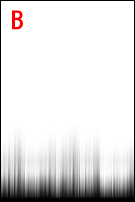
<img src="http://www.imanishi.com/mayablog/mayaHair/hairA1.jpg"  alt="maya tutorials paint effects hair" />
 <img src="http://www.imanishi.com/mayablog/mayaHair/hairA2.jpg"  alt="maya tutorials paint effects hair" />
 <img src="http://www.imanishi.com/mayablog/mayaHair/hairA3.jpg"  alt="maya tutorials paint effects hair" /><br />
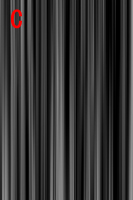
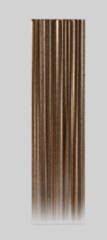
Prepare the texture images like the above figures.<br />
Set them to the material <br />
A　<b>Color</b><br />
B　<b>Transparency</b> and <b>Specular Color</b>　<br />
C　<b>Bump Mapping</b><br />
<br />
(Set texture B to Transparency,<br />
then drag-and-drop it to Specular Color with <img src="http://www.imanishi.com/mayablog/images/mmb.jpg"  alt="maya tutorials paint effects hair" />)<br />
<br />
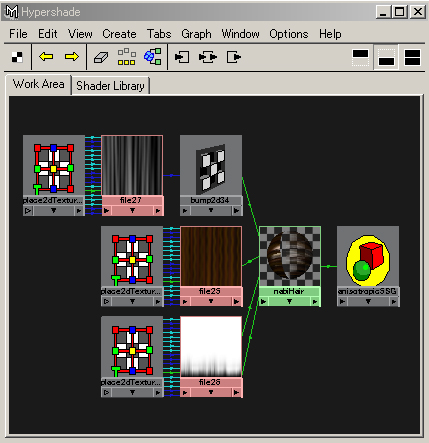
<img src="http://www.imanishi.com/mayablog/mayaHair/hairA4.jpg"  alt="maya tutorials paint effects hair" /><br />
You will see the connection like the above.<br />
<br />
<img src="http://www.imanishi.com/mayablog/mayaHair/hairA5.jpg"  alt="maya tutorials paint effects hair" />
  <img src="http://www.imanishi.com/mayablog/mayaHair/hairA6.jpg"  alt="maya tutorials paint effects hair" /><br />
Assign it to a NURBS plane.<br />
<br />
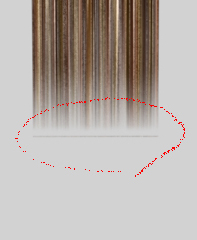
You will see that the edge is not slightly transparent.<br />
<br />
<img src="http://www.imanishi.com/mayablog/mayaHair/hairA7.jpg"  alt="maya tutorials paint effects hair" />  <br />
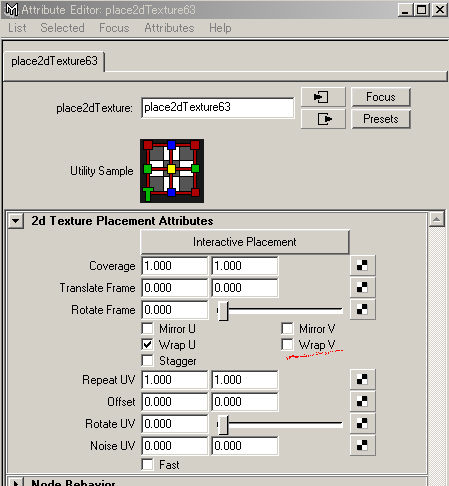
Uncheck <b>WrapV</b> (or WrapU) of the place2dTexture of the texture B.<br />
<br />
WrapV (WrapU) means that the texture repeats toward V (U).<br />
The pixels on the edge was blurred by the pixels on an opposite edge.<br />
Therefore, the edge became opaque.<br />
<br />
<img src="http://www.imanishi.com/mayablog/mayaHair/hairA8.jpg"  alt="maya tutorials paint effects hair" />  <br />
You deform NURBS and make the hairstyle. <br />
<br />
（The rendering time is a little long because it is transparent.）<br />
<br />
</p>
<p>
<hr /> 
<img src="http://www.imanishi.com/mayablog/images/squareMini.jpg" alt="maya tutorials paint effects hair" /> Basics of Paint Effects<br />
<br />
  <img src="http://www.imanishi.com/mayablog/mayaHair/hairB1.jpg"  alt="maya tutorials paint effects hair" /><br />
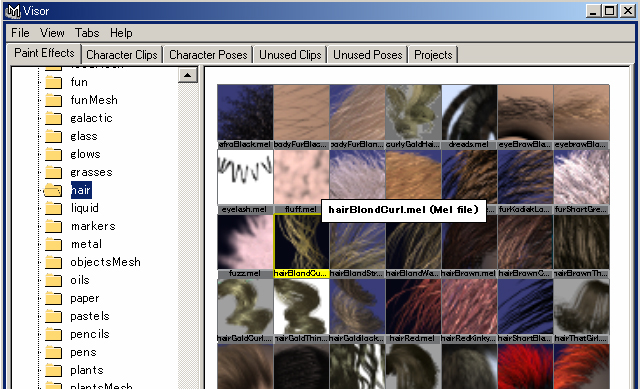
Open the Visor<br />
<b>Window</b> > <b>General Editors</b> > <b>Visor...</b><br />
and select a brush.<br />
  <br />
  <img src="http://www.imanishi.com/mayablog/mayaHair/hairB2.jpg"  alt="maya tutorials paint effects hair" /><br />
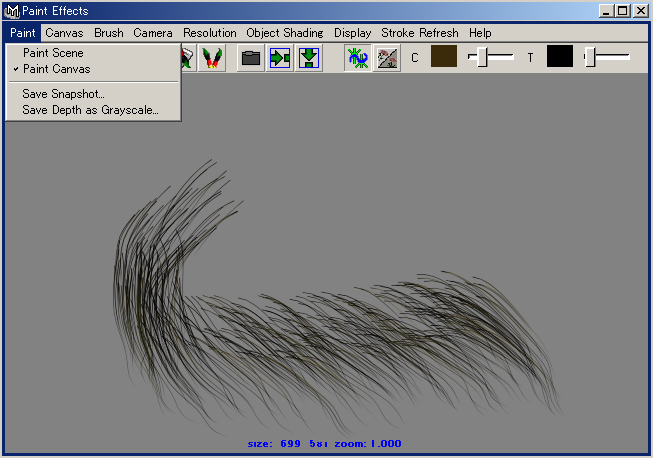
Open Paint Effects Window<br />
<b>Window</b> > <b>Paint Effects...</b><br />
and check<br />
<b>Paint</b> > <b>Paint Canvas</b><br />
Try painting.<br />
<br />
Press <b>b</b> key and drug, you can change the size of the brush.<br />
<br />
You can undo once,
<b>Canvas</b> > <b>Canvas Undo</b><br />
<br />
<img src="http://www.imanishi.com/mayablog/mayaHair/hairB3.jpg"  alt="maya tutorials paint effects hair" /><br /><br />
 <img src="http://www.imanishi.com/mayablog/mayaHair/hairB4.jpg"  alt="maya tutorials paint effects hair" /><br />
The brush stroke is drawn on the plane of y=0<br />
when dragging it on the Persp Window. <br />
<br />
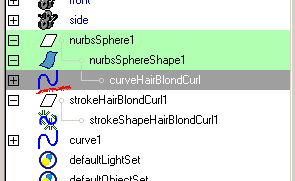
In the Outliner, you will see a node named <i>stroke</i> and a NURBS Curve. <br />
<br />
<img src="http://www.imanishi.com/mayablog/mayaHair/hairB5.jpg"  alt="maya tutorials paint effects hair" /><br /><br />
 <img src="http://www.imanishi.com/mayablog/mayaHair/hairB6.jpg"  alt="maya tutorials paint effects hair" /><br />
Make a NURBS Primitive and select it,<br />
and in the Render Menu Sets<br />
<b>Paint Effects</b> > <b>Make Paintable</b><br />
<br />
Then you can draw the brush strokes on the NURBS surface.<br />
<br />
In the Outliner, check <b>Display</b> > <b>Shapes</b><br />
you will see a NURBS curve (stroke path) under the NURBS object.<br />
<br />
<img src="http://www.imanishi.com/mayablog/mayaHair/hairB7.jpg"  alt="maya tutorials paint effects hair" /><br />
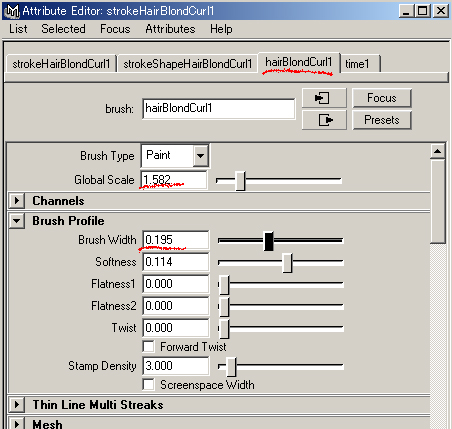
If you open the Attribute Editor of the stroke,<br />
the attributes of the brush will appear.<br />
<br />
Because there are quite a lot of numbers of the attributes,<br />
I will explain only attributes necessary for making the hair. <br />
<br />
<b>Global Scale</b> ...<font color="#FF0000">
 You cannot apply the scale to the Paint Effects brush with the scale tool. </font><br />
 you should apply the scale with this attribute.<br />
 you set 1, it is comprehensible to change all of the brush scale together.<br />
<br />
<b>Brush Profile</b> > <b>Brush Width</b> ...brush width<br />
<br />
<img src="http://www.imanishi.com/mayablog/mayaHair/hairB8.jpg"  alt="maya tutorials paint effects hair" /><br />
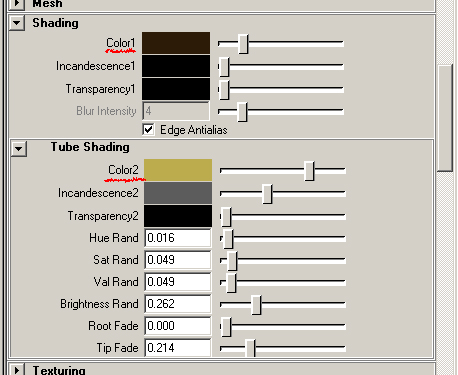
<b>Shading</b> > <b>Color1</b> ...the color of the tube of the brush roots<br />
<b>Shading</b> > <b>Tube Shading</b> > <b>Color2</b> ...the color of the tube tip<br />
<br />
<img src="http://www.imanishi.com/mayablog/mayaHair/hairB9.jpg"  alt="maya tutorials paint effects hair" />  <br />
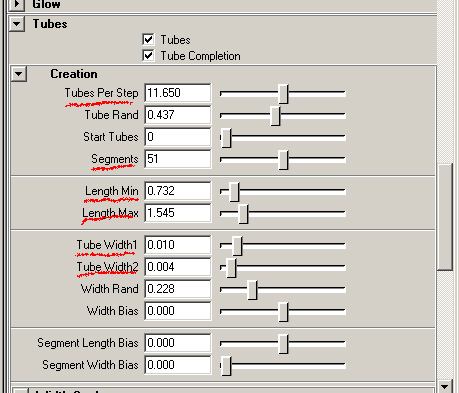
<b>Tubes</b> > <b>Creation</b> > <b>Tubes Per Step</b> ...density of the tubes of the brush<br />
 it will take the rendering time by increasing. <br />
<b>Tubes</b> > <b>Creation</b> > <b>Segments</b> ...smoothness of the tubes<br />
 it will take the rendering time by increasing.<br />
<b>Tubes</b> > <b>Creation</b> > <b>Length Min</b> ...length Min<br />
<b>Tubes</b> > <b>Creation</b> > <b>Length Max</b> ...length Max<br />
<b>Tubes</b> > <b>Creation</b> > <b>Tube Width1</b> ...width of the tubes at the base<br />
<b>Tubes</b></b> > <b>Creation</b> > <b>Tube Width2</b> ...width of the tubes at the tip<br />
<br />
  <img src="http://www.imanishi.com/mayablog/mayaHair/hairB10.jpg" alt="maya tutorials paint effects hair"  /><br />
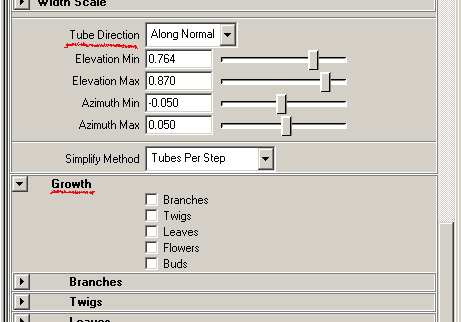
  <b>Tubes</b> > <b>Creation</b> > <b>Tube Direction</b> ...select Along Normal,<br /> 
      the tubes are generated along the surface normal<br />
  <b>Tubes</b> > <b>Growth</b> ...select <i>off</i> for hair, select <i>on</i> for plants<br />
  <br />
  <img src="http://www.imanishi.com/mayablog/mayaHair/hairB11.jpg" alt="maya tutorials paint effects hair"  /><br />
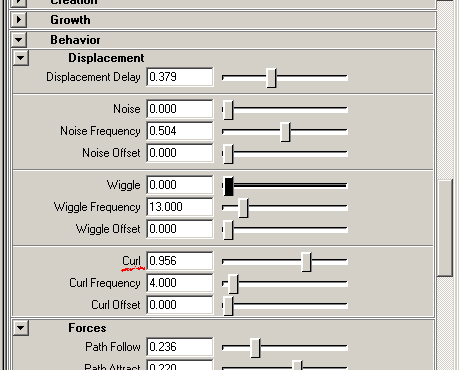
  <b>Tubes</b> > <b>Behavior</b> > <b>Displacement</b> > <b>Curl</b> ...curl<br />
  <br />
  <hr />
</p>
<p>
<img src="http://www.imanishi.com/mayablog/images/squareMini.jpg"> making the hairstyle with Paint Effects<br />
<br />
<img src="http://www.imanishi.com/mayablog/mayaHair/hairC3.jpg" alt="maya tutorials paint effects hair"  /><br /><br />
 <img src="http://www.imanishi.com/mayablog/mayaHair/hairC1.jpg" alt="maya tutorials paint effects hair"  />　<br />
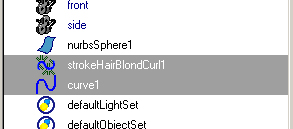
Make a NURBS curve near the tubes of the brush,<br />
select them in order of the stroke and the curve,<br />
<b>Paint Effects</b> > <b>Curve Utilities</b> > <b>Set Stroke Control Curves</b><br />
then the tubes of the brush will be along the curve. <br />
Move CVs of the curve and set the direction of the tubes. <br />
<br />
The curve (control curve) is even two or more acceptable. <br />
<br />
<img src="http://www.imanishi.com/mayablog/mayaHair/hairC2.jpg" alt="maya tutorials paint effects hair"  /><br />
Moving the curve on the surface, you can adjust the place of the brush.<br />
<br />
<img src="http://www.imanishi.com/mayablog/mayaHair/hairC4.jpg" alt="maya tutorials paint effects hair"  /><br />
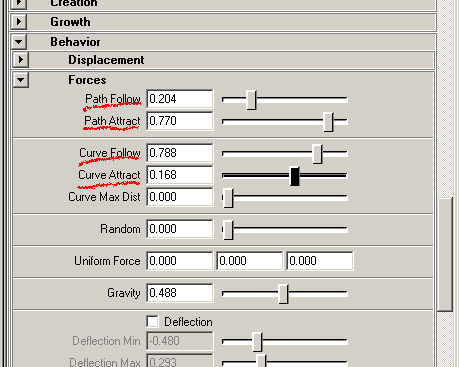
<b>Tubes</b> > <b>Behavior</b> > <b>Forces</b> > <b>Path Follow</b><br />
 degree how tubes grow along the stroke path<br />
<b>Tubes</b> > <b>Behavior</b> > <b>Forces</b> > <b>Path Attract</b><br />
 degree how tubes attracted to the stroke path<br />
<b>Tubes</b> > <b>Behavior</b> > <b>Forces</b> > <b>Curve Follow</b><br />
 degree along control curve set according to procedure above. <br />
<b>Tubes</b> > <b>Behavior</b> > <b>Forces</b> > <b>Curve Attract</b><br />
 degree attracted to control curve set according to procedure above. <br />
<br />
<img src="http://www.imanishi.com/mayablog/mayaHair/hairC5.jpg" alt="maya tutorials paint effects hair"  /><br />
To draw on the polygon by Paint Effects, it is necessary to set UVs. <br />
You may put the NURBS in the polygon, and you may draw on it.<br />
<br />
You can set the display accuracy in the workspace of Paint Effects brush,<br />
<b>Display</b> > <b>Rendering</b> > <b>Stroke Display Quality</b> ><br />
<br />
The display non-display of each window can be set,<br />
<b>Show</b> > <b>Strokes</b><br />　
<br />
<img src="http://www.imanishi.com/mayablog/mayaHair/hairC6.jpg" alt="maya tutorials paint effects hair"  /><br /><br />
 <img src="http://www.imanishi.com/mayablog/mayaHair/hairC7.jpg" alt="maya tutorials paint effects hair"  /><br />
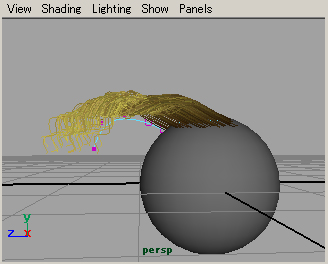
As for Paint Effects, it takes rendering time. <br />
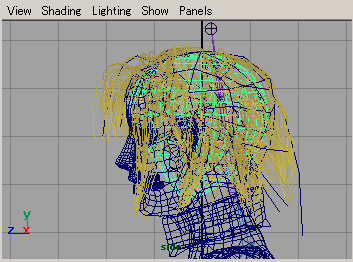
I made a rough hairstyle from the NURBS object,<br />
and added the hair of Paint Effects there. <br />
They are above figures. <br />
<br />
</p>
<br />
<br />
]]>
    </content>
</entry>

<entry>
    <title>Maya tutorials:character setup (5): facial animation with Wire Deformers</title>
    <link rel="alternate" type="text/html" href="http://www.imanishi.com/mayablog_en/2008/11/maya-tutorialscharacter-setup.html" />
    <id>tag:www.imanishi.com,2008:/mayablog_en//5.177</id>

    <published>2008-11-20T06:49:29Z</published>
    <updated>2009-03-30T03:13:13Z</updated>

    <summary>facial animation with Wire Deformers.</summary>
    <author>
        <name>imanishiEn</name>
        <uri>http://www.imanishi.com/</uri>
    </author>
    
        <category term="maya" scheme="http://www.sixapart.com/ns/types#category" />
    
        <category term="mayaAnimChara" scheme="http://www.sixapart.com/ns/types#category" />
    
    
    <content type="html" xml:lang="en" xml:base="http://www.imanishi.com/mayablog_en/">
        <![CDATA[<object classid="clsid:D27CDB6E-AE6D-11cf-96B8-444553540000" codebase="http://download.macromedia.com/pub/shockwave/cabs/flash/swflash.cab#version=6,0,29,0" width="200" height="150">
  <param name="movie" value="http://www.imanishi.com/mayablog/mayaWireDeform/faceWire.swf" />
  <param name="quality" value="high" />
  <embed src="http://www.imanishi.com/mayablog/mayaWireDeform/faceWire.swf" quality="high" pluginspage="http://www.macromedia.com/go/getflashplayer" type="application/x-shockwave-flash" width="200" height="150"></embed>
</object>
<br />
In this tutorial, I will explain the method of facial animation with Wire Deformers.]]>
        <![CDATA[<br />
<p>
For the explanation about the skeleton and skinning, please refer to<br />
<a href="http://www.imanishi.com/mayablog_en/2008/10/maya-character-setup-1-skeleto.html">Maya: character setup (1): skeleton and skinning</a> 
<br />
For the explanation about adjusting skin weights, please refer to<br />
<a href="http://www.imanishi.com/mayablog_en/2008/10/mayacharacter-setup-2-adjustin.html">Maya:character setup (2): adjusting skin weights</a>
<br />
For the explanation about IK handle, please refer to<br />
<a href="http://www.imanishi.com/mayablog_en/2008/10/mayacharacter-setup-3-ik-handl.html">Maya tutorials:character setup (3): IK handle</a>
<br />
For the explanation about Blend Shape Deformers, please refer to<br />
<a href="http://www.imanishi.com/mayablog_en/2008/11/mayacharacter-setup-4-facial-a.html">Maya tutorials:character setup (4): facial animation</a>
<br />
<br />
</p>
<hr />
<p><br />
  <img src="http://www.imanishi.com/mayablog/mayaWireDeform/w01.jpg" alt="alt="maya tutorials facial animation wire deformers"" /><br />
  <br />
Make the NURBS curves in the place where you want to deform and create facial expressions.<br />
<br />
<br />
<img src="http://www.imanishi.com/mayablog/mayaWireDeform/w02.jpg" alt="alt="maya tutorials facial animation wire deformers"" /><br /> 
<br />
Select <b>Deform</b> > <b>Wire Tool</b><br />
<br />
Select the object(s) that wants to be deformed, then press Enter key.<br />
<br />
Select the curve(s) that wants to be used for the deformation, then press Enter key.<br />
<br />
You will see the objects reverse red as shown in the above figure.<br />
<br />
<br />
<img src="http://www.imanishi.com/mayablog/mayaWireDeform/w03.jpg" alt="alt="maya tutorials facial animation wire deformers"" /><br />
<br />
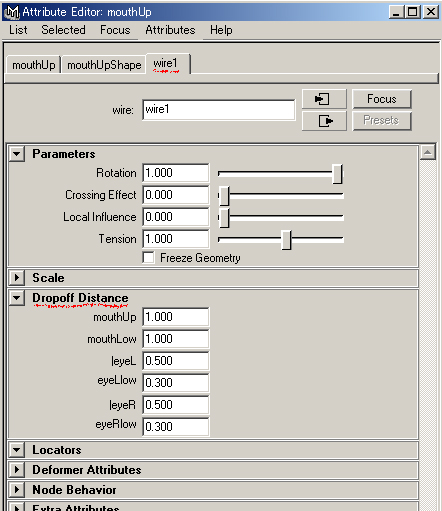
Select the one of the curves and open the Attribute Editor.<br />
<br />
Put the distance value where each curve influences the object<br />
to <b>Dropoff Distance</b> in the <i>wire</i> tab.<br />
<br />
<br />
<img src="http://www.imanishi.com/mayablog/mayaWireDeform/w05.jpg" alt="alt="maya tutorials facial animation wire deformers"" /><br />
<br />
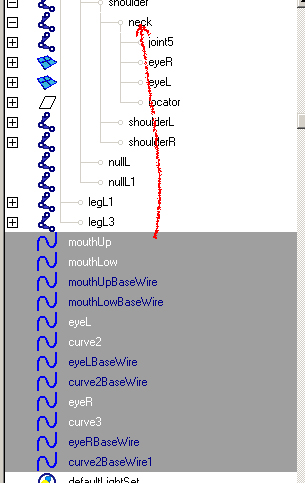
When the bind is done to the skeleton, you make the wires 'Child' of appropriate Joint. <br />
<br />
<br />
<img src="http://www.imanishi.com/mayablog/mayaWireDeform/w04.jpg" alt="alt="maya tutorials facial animation wire deformers"" /><br />
<br />
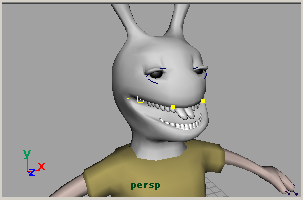
You move the CVs of each curve and make the facial expression.<br /> 
You will set the keyframes and complete animation. <br />
<br />
<object classid="clsid:D27CDB6E-AE6D-11cf-96B8-444553540000" codebase="http://download.macromedia.com/pub/shockwave/cabs/flash/swflash.cab#version=6,0,29,0" width="200" height="150">
  <param name="movie" value="http://www.imanishi.com/mayablog/mayaWireDeform/faceWireB.swf" />
  <param name="quality" value="high" />
  <embed src="http://www.imanishi.com/mayablog/mayaWireDeform/faceWireB.swf" quality="high" pluginspage="http://www.macromedia.com/go/getflashplayer" type="application/x-shockwave-flash" width="200" height="150"></embed>
</object>
<br />
</p>
<hr />
<br />
Japanese article<br />
<a href="http://www.imanishi.com/mayablog/2009/03/maya-wire.html">
Maya tutorials:character setup (5): facial animation with Wire Deformers</a><br />
<br />]]>
    </content>
</entry>

<entry>
    <title>Maya tutorials:character setup (4): facial animation</title>
    <link rel="alternate" type="text/html" href="http://www.imanishi.com/mayablog_en/2008/11/mayacharacter-setup-4-facial-a.html" />
    <id>tag:www.imanishi.com,2008:/mayablog_en//5.175</id>

    <published>2008-11-12T07:18:56Z</published>
    <updated>2009-03-26T02:39:28Z</updated>

    <summary>the method of animation of face of the character</summary>
    <author>
        <name>imanishiEn</name>
        <uri>http://www.imanishi.com/</uri>
    </author>
    
        <category term="maya" scheme="http://www.sixapart.com/ns/types#category" />
    
        <category term="mayaAnimChara" scheme="http://www.sixapart.com/ns/types#category" />
    
    
    <content type="html" xml:lang="en" xml:base="http://www.imanishi.com/mayablog_en/">
        <![CDATA[<object classid="clsid:D27CDB6E-AE6D-11cf-96B8-444553540000" codebase="http://download.macromedia.com/pub/shockwave/cabs/flash/swflash.cab#version=6,0,29,0" width="200" height="150">
  <param name="movie" value="http://www.imanishi.com/mayablog/mayaBlend/blend.swf" />
  <param name="quality" value="high" />
  <embed src="http://www.imanishi.com/mayablog/mayaBlend/blend.swf" quality="high" pluginspage="http://www.macromedia.com/go/getflashplayer" type="application/x-shockwave-flash" width="200" height="150"></embed>
</object>
<br />
<br />
In this tutorial, I will explain the method of animation of face of the character<br />
 (facial animation).<br />
I will explain the setting of the constraints and the blend shape deformers.
<br />]]>
        <![CDATA[<br />
<p>
<hr />
<br />
<img src="http://www.imanishi.com/mayablog/images/squareMini.jpg" alt="maya tutorial FAQ blend shape deformer" > Preparation<br />
<img src="http://www.imanishi.com/mayablog/mayaBlend/blendA.jpg" alt="maya tutorial FAQ blend shape deformer" /><br />
Unbind the object to which you will apply the facial animation.<br />
Select the object<br />
<b>Skin</b> > <b>Detach Skin</b><br />
<br /> 
(You will leave the eyeball unbinded.<br /> 
You will bind again the objects other than the eyeball later.)<br /> 
<br />
</p>
<p>
<hr />
<br />
<img src="http://www.imanishi.com/mayablog/images/squareMini.jpg" alt="maya tutorial FAQ blend shape deformer" > Settings of the eyeball
<br />
<img src="http://www.imanishi.com/mayablog/mayaBlend/blendB1E.jpg" alt="maya tutorial FAQ blend shape deformer" />　<img src="http://www.imanishi.com/mayablog/mayaBlend/blendB2.jpg" alt="maya tutorial FAQ blend shape deformer" /><br />
Set The pivot point of the eyeball to the center of the object. <br />
Select the eyeball<br />
<b>Modify</b> > <b>Center Pivot</b><br />
<br />
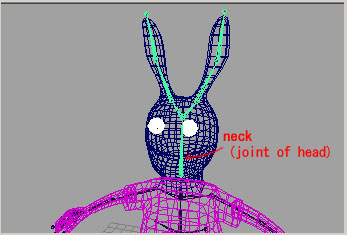
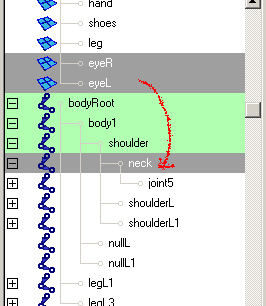
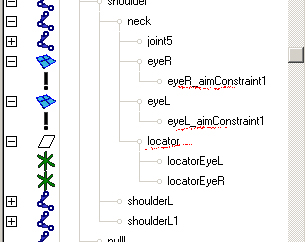
Make the eyeballs the "child" of <i>neck</i> (the joint of head).<br />

<br />
The easiest method is to rotate the eyeball in this place and to set the keyframes. <br />
You may have the eyeball can controlled the glance ahead. <br />
<br />
<img src="http://www.imanishi.com/mayablog/mayaBlend/blendB3.jpg" alt="maya tutorial FAQ blend shape deformer" /><br />
Make two locators<br /> 
<b>Create</b> > <b>Locator</b><br /> 
then move them to the front of each eyeball.<br /> 
<br />
<img src="http://www.imanishi.com/mayablog/mayaBlend/blendB4.jpg" alt="maya tutorial FAQ blend shape deformer" /><br />
Select the locator and the eyeball in this order<br /> 
<b>Constrain</b> > <b>Aim Constrain</b> <img src="http://www.imanishi.com/mayablog/images/squareOption.jpg" alt="maya tutorial FAQ blend shape deformer" ><br />
<br />
If the eyeball turns Z axis first、<b>Aim Vector</b> 0 0 1<br />
<br />
<img src="http://www.imanishi.com/mayablog/mayaBlend/blendB5.jpg" alt="maya tutorial FAQ blend shape deformer" /><br />
<br />
Make a group of the locators, make it the "child" of <i>neck</i> (the joint of the head).<br />
You will move this group,<br />
when you move the eyeballs to the same direction.<br />
<br />
You will see the node of the aim constraint under the each eyeball.<br />
(If you want to release the constraint, you should delete this node.)<br />
<br />
</p>
<p>
<hr /> 
<img src="http://www.imanishi.com/mayablog/images/squareMini.jpg" alt="maya tutorial FAQ blend shape deformer" > Basics of the blend shape deformers<br />
  <br />
  <img src="http://www.imanishi.com/mayablog/mayaBlend/blendC1.jpg" alt="maya tutorial FAQ blend shape deformer" /><br />
Duplicate a ball of polygon or NURBS.<br />
Name them <i>base</i>, <i>targetA</i>, <i>targetB</i>, and <i>targetC</i>.<br />  
Deform <i>targetA</i>, <i>targetB</i>, and <i>targetC</i> by moving vertices or CVs<br /> 
as shown in the above figure.<br />

<br />
Select <i>targetA</i>, <i>targetB</i>, <i>targetC</i>, <i>base</i> in this order,<br />

<b>Deform</b> > <b>Create Blend Shape</b><br />
The blend shape deformer node was made. <br />
<br />
Objects whose shapes you want to use to deform the shape of another object<br />
are called the <b>target objects</b>,<br />
and the object being deformed is called the <b>base object</b>.<br /> 
The base object's resulting deformed shape is called the <b>blend shape</b>.<br /> 
<br />
<img src="http://www.imanishi.com/mayablog/mayaBlend/blendC2.jpg" alt="maya tutorial FAQ blend shape deformer" />　<img src="http://www.imanishi.com/mayablog/mayaBlend/blendC3.jpg" alt="maya tutorial FAQ blend shape deformer" /><br />
Open the Blend Shape Editor Window<br />
<b>Window</b> > <b>Animation Editors</b> > <b>Blend Shape...</b><br />

<br />
There are a target object name and a slide bar corresponding to it.<br /> 
When you raise the slide bar up<br />
the base object becomes the shape of the target object.<br /> 
<br />
The numerical value enters under the slide bar<br /> 
according to the position of the bar. <br /> 
It is possible to input directly.(A minus value also). <br />
<br />
When the <b>Key</b> button is pushed, a keyframe is set. <br />
<br />
When the <b>KeyAll</b> button is pushed, the keyframe is set<br />
to all target objects.<br />
<br />
When the <b>Select</b> button is pushed, the blend shape deformer node<br />
(in this case, <i>blendShape1</i>) is selected,<br />
and you can display the blend shape deformer node in the Graph Editor<br />
or if necessary you can delete it.<br />
<br />
<font color="#FF0000">
It is necessary to deform the target object in Component mode (i.e. vertices, CVs).<br />
In Object mode, blend shapes are not deformed with transform, rotation, and scale.<br />
<br />
Once you setup the blend shape, <br />
you must not delete and not add vertices or CVs of the all objects.<br />
</font>
</p>
<p>
<hr />
<br />
<img src="http://www.imanishi.com/mayablog/images/squareMini.jpg" alt="maya tutorial FAQ blend shape deformer" > Setting of facial expression with the blend shape deformer<br />
<br />
  <img src="http://www.imanishi.com/mayablog/mayaBlend/blendD1.jpg" alt="maya tutorial FAQ blend shape deformer" /> 　<img src="http://www.imanishi.com/mayablog/mayaBlend/blendD2.jpg" alt="maya tutorial FAQ blend shape deformer" />  <br />
You should duplicate the object.<br /> 
The frequency is the same as the number of the facial expression that you need. <br /> 
You deform the duplicated object, and you model the facial expression. <br /> 
<br />   
When it is not a single object, you should make them to the group. <br /> 
You should make the order of the object in the group the same order.<br /> 
<br /> 
The above figure is an example of the face objects and the teeth objects. <br /> 
<br />
Select the target object (or group) sequentially,<br />
and select the base object (or group) at the end. <br />
<b>Deform</b> > <b>Create Blend Shape</b><br />
<br />
Open the Blend Shape Editor Window<br />
<b>Window</b> > <b>Animation Editors</b> > <b>Blend Shape...</b><br />
<br />
Setup keyframes of the target objects and make your facial animation.<br />
<br />
You may make two or more blend shape deformer of each object without making it to one group. <br />
(for instance, face and tongue, etc.)<br />
<br />
<img src="http://www.imanishi.com/mayablog/mayaBlend/blendD3.jpg" alt="maya tutorial FAQ blend shape deformer" />  <br />
You can edit the keyframes of the blend shape deformer with opening the Graph Editor<br />
<br />
<font color="#FF0000">
After setting blend shape deformer, <br />
you can deform the target objects again.<br />
If necessary, you deform them and adjust the facial expression. <br />
</font>
</p>
<p>
<hr />
<img src="http://www.imanishi.com/mayablog/images/squareMini.jpg" alt="maya tutorial FAQ blend shape deformer" >Setting of blink<br />
  <br />
  <img src="http://www.imanishi.com/mayablog/mayaBlend/blendE1.jpg" alt="maya tutorial FAQ blend shape deformer" /> 　<img src="http://www.imanishi.com/mayablog/mayaBlend/blendE3.jpg" alt="maya tutorial FAQ blend shape deformer" />  <br />
Select the target object that shuts eyes in the Graph Editor, <br />
<b>Edit</b> > <b>Keys</b> > <b>Bake Simulation</b> <img src="http://www.imanishi.com/mayablog/images/squareOption.jpg"><br />
Set 1(default) to <b>Sample by</b> value then push <b>Bake</b> button<br />
You will get all frames keyframed.<br />
<br />
(In general, <b>Bake simulation</b> is a command that converts the simulation<br />
of the dynamics into the key frame. <br />
Here, I used it to make the keyframes simply every one frame. )<br />
<br />
<img src="http://www.imanishi.com/mayablog/mayaBlend/blendE2.jpg" alt="maya tutorial FAQ blend shape deformer" />  <br />
You choose about three frames from one at random,<br />
and lift up to 1 with the Translate tool. <br />
<br />
（This is an easy setting method. <br />
Of course, there is a smart method made random by MEL or Expression, too. ） <br />
 <br />
</p>
<p>
<hr />
<img src="http://www.imanishi.com/mayablog/images/squareMini.jpg" alt="maya tutorial FAQ blend shape deformer" > Moving blend shapes together<br />
<br />
<img src="http://www.imanishi.com/mayablog/mayaBlend/blendG1.jpg" alt="maya tutorial FAQ blend shape deformer" />　<img src="http://www.imanishi.com/mayablog/mayaBlend/blendG2E.jpg" alt="maya tutorial FAQ blend shape deformer" /><br />
If the number of the target objects is not same as shown in the above figure, <br />
you can't make them to groups,<br />  
and you also can't make them one blend shape.<br />
<br />  
<img src="http://www.imanishi.com/mayablog/mayaBlend/blendG3.jpg" alt="maya tutorial FAQ blend shape deformer" />  <br />
Then, you make the blend shape of the face (<i>bsFace</i>),<br />
and the blend shape of the teeth (<i>bsHa</i>). <br />
  <br />
  <br />
  <img src="http://www.imanishi.com/mayablog/mayaBlend/blendG4.jpg" alt="maya tutorial FAQ blend shape deformer" /><img src="http://www.imanishi.com/mayablog/mayaBlend/blendG5.jpg" alt="maya tutorial FAQ blend shape deformer" /><br />
Open the Set Driven Key Window<br />
<b>Animate</b> > <b>Set Driven Key</b> > <b>Set</b> <img src="http://www.imanishi.com/mayablog/images/squareOption.jpg" alt="maya tutorial FAQ blend shape deformer" ><br />
<br />

(1) Push <b>Select</b> button of the blend shape of the face (<i>bsFace</i>).<br />
(2) Push <b>Load Driver</b> button of the Set Driven Key Window.<br />
(3) Push <b>Select</b> button of the blend shape of the teeth (<i>bsHa</i>).<br />
(4) Push <b>Load Driven</b> button of the Set Driven Key Window.<br />
(5) Click the face target object that moves together (<i>faceOpen</i>).<br />
(6) Click the teeth target object that moves together (<i>haOpen</i>).<br />
(7),(8) Set 0 to the value of target objects.<br />
(9) Push <b>Key</b> button of the Set Driven Key Window.<br />
(10),(11) Set 1 to the value of taget objects.<br />
(12) Push <b>Key</b> button of the Set Driven Key Window.<br />
<br />
Then, the slide bar of the teeth target object moves,<br />
when you move the slide bar of the face target object.<br /> 
<br />
Repeat (5) - (12) process for each target objects that move together. <br />
<br />
It is also possible that you set two or more teeth target object to the face target object. <br />
<br />
<br />
</p>
<br />
Japanese article<br />
<a href="http://www.imanishi.com/mayablog/2009/03/maya-blend.html">
Maya tutorials:character setup (4): facial animation</a><br />
<br />
<br />]]>
    </content>
</entry>

<entry>
    <title>Maya tutorials:character setup (3): IK handle</title>
    <link rel="alternate" type="text/html" href="http://www.imanishi.com/mayablog_en/2008/10/mayacharacter-setup-3-ik-handl.html" />
    <id>tag:www.imanishi.com,2008:/mayablog_en//5.173</id>

    <published>2008-10-31T01:36:23Z</published>
    <updated>2009-03-24T07:30:27Z</updated>

    <summary>method of setting the IK handles</summary>
    <author>
        <name>imanishiEn</name>
        <uri>http://www.imanishi.com/</uri>
    </author>
    
        <category term="maya" scheme="http://www.sixapart.com/ns/types#category" />
    
        <category term="mayaAnimChara" scheme="http://www.sixapart.com/ns/types#category" />
    
    
    <content type="html" xml:lang="en" xml:base="http://www.imanishi.com/mayablog_en/">
        <![CDATA[<object classid="clsid:D27CDB6E-AE6D-11cf-96B8-444553540000" codebase="http://download.macromedia.com/pub/shockwave/cabs/flash/swflash.cab#version=6,0,29,0" width="200" height="150">
  <param name="movie" value="http://www.imanishi.com/mayablog/mayaIK/run.swf" />
  <param name="quality" value="high" />
  <embed src="http://www.imanishi.com/mayablog/mayaIK/run.swf" quality="high" pluginspage="http://www.macromedia.com/go/getflashplayer" type="application/x-shockwave-flash" width="200" height="150"></embed>
</object>　
<object classid="clsid:D27CDB6E-AE6D-11cf-96B8-444553540000" codebase="http://download.macromedia.com/pub/shockwave/cabs/flash/swflash.cab#version=6,0,29,0" width="200" height="150">
  <param name="movie" value="http://www.imanishi.com/mayablog/mayaIK/runW.swf" />
  <param name="quality" value="high" />
  <embed src="http://www.imanishi.com/mayablog/mayaIK/runW.swf" quality="high" pluginspage="http://www.macromedia.com/go/getflashplayer" type="application/x-shockwave-flash" width="200" height="150"></embed>
</object>
<br />
In this tutorial I will explain the method of setting the IK handles.<br />]]>
        <![CDATA[<br />
<p>
<hr />
<br />
When the joints are set to the models of the character, binds are done,<br />
and the skin weight is adjusted, <br />
you can make animation by setting the keys to the joints. <br />
<br />
When operation to which the character grips the ball is done for instance,<br />
each joints of the shoulder, the elbow, and the wrist are rotated from the upper-body,<br />
and however, when the angle of the joint of "parents" is changed<br />
even if the palm is taken to the position of the ball,<br />
the hand is away from the ball,<br />
and the angle adjustment of each joints are needed again. <br />
<br />
Then, to control the joints from "child" of the joint,<br />
you will set <b>IK</b>(inverse kinematics) <b>handles</b>. <br />
<br />
<br />
For the explanation about the skeleton and skinning, please refer to<br />
<a href="http://www.imanishi.com/mayablog_en/2008/10/maya-character-setup-1-skeleto.html">Maya: character setup (1): skeleton and skinning</a> 
<br />
For the explanation about adjusting skin weights, please refer to<br />
<a href="http://www.imanishi.com/mayablog_en/2008/10/mayacharacter-setup-2-adjustin.html">Maya:character setup (2): adjusting skin weights</a>
<br />
<br />
</p>
<p>
<hr />
<br />
<img src="http://www.imanishi.com/mayablog/images/squareMini.jpg" alt="maya tutorial character setup IK handle" />Setting of <b>IK handles</b><br />
  <br />
  <img src="http://www.imanishi.com/mayablog/mayaIK/ikA.jpg" alt="maya tutorial character setup IK handle" /><br />
Select <b>Skeleton</b> > <b>IK Handle Tool</b><br />
Click the joint of the shoulder and the joint of the wrist in this order.<br />
<br />
<img src="http://www.imanishi.com/mayablog/mayaIK/ikB1.jpg" alt="maya tutorial character setup IK handle" /><br />
The <b>IK handle</b> is made, and you can move it with the <b>Move tool</b>. <br />
<br />
<img src="http://www.imanishi.com/mayablog/mayaIK/ikB2.jpg" alt="maya tutorial character setup IK handle" /><br />
It is displayed by the icon like the above figure in <b>Outliner</b>. <br />
<br />

<img src="http://www.imanishi.com/mayablog/mayaIK/ikD1.jpg" alt="maya tutorial character setup IK handle" /><br />
Set the <b>IK handles</b> to both hands and both feet. <br />
<br />
<img src="http://www.imanishi.com/mayablog/mayaIK/ikC1E.jpg" alt="maya tutorial character setup IK handle" /><br />
<br />
When you select the <b>IK handle</b>, and <img src="http://www.imanishi.com/mayablog/mayaIK/ikB3.jpg" alt="maya tutorial character setup IK handle" /> (Show Manipulator Tool) is clicked,<br />
the <b>pole vector</b> is displayed in the shoulder<br />
the <b>twist disk</b> is displayed in the wrist<br />
as shown in the above figure.<br />
<br />
You can move the <b>pole vector</b> with the <b>Move tool</b>. <br />
You can move the <b>twist disk</b> by clicking directly.<br /> 
<br />
You can control the direction of the elbow and the direction of the knee <br />
by using both the <b>pole vector</b> and the <b>twist disk</b>. <br />
<br />
(You can drag the manipulator of the <b>pole vector</b><br />
to the place where you can select it easily.)<br />
<br />
You can make the animation by setting the key frame to the <b>IK handles</b>. 
<br />
<br />
</p>
<p>
<hr />
<br />
<img src="http://www.imanishi.com/mayablog/images/squareMini.jpg" alt="maya tutorial character setup IK handle" /> Setting of <b>preferred angles</b><br />
<br />
<img src="http://www.imanishi.com/mayablog/mayaIK/ikG1.jpg" alt="maya tutorial character setup IK handle" /><br />
When the <b>IK handles</b> are set,<br />
the joint might turn in the direction that you do not intend.<br />
(Though it doesn't happen when you have applied the angle before binding the joints)<br />
<br />
<img src="http://www.imanishi.com/mayablog/mayaIK/ikG2.jpg" alt="maya tutorial character setup IK handle" /><br />
At this time, bend the joint in the direction where you want to bend it,<br />
select the joint<br />
<b>Skeleton</b> > <b>Set Preferred Angle</b><br />
<br />
Then you can set the <b>IK handles</b>.<br />
<br />
<br />
</p>
<p>
<hr />
<br /> 
<img src="http://www.imanishi.com/mayablog/images/squareMini.jpg" alt="maya tutorial character setup IK handle" />Tree structure of the <b>IK handle</b> and the joints<br />
<br />
<img src="http://www.imanishi.com/mayablog/mayaIK/ikE1.jpg" alt="maya tutorial character setup IK handle" />　　
<object classid="clsid:D27CDB6E-AE6D-11cf-96B8-444553540000" codebase="http://download.macromedia.com/pub/shockwave/cabs/flash/swflash.cab#version=6,0,29,0" width="200" height="150">
    <param name="movie" value="http://www.imanishi.com/mayablog/mayaIK/ikA.swf" />
    <param name="quality" value="high" />
    <embed src="http://www.imanishi.com/mayablog/mayaIK/ikA.swf" quality="high" pluginspage="http://www.macromedia.com/go/getflashplayer" type="application/x-shockwave-flash" width="200" height="150"></embed>
</object>
<br />
In the tree structure that there are no "parent and child" relations<br />
in the <b>IK handles</b> and the joints as showing in the above figure of the <b>Outliner</b>,<br />
you struck a key frame (once) to the <b>IK handles</b> of the arm and the foot,<br />
and set the key frames to <i>bodyRoot</i> (the root joint).<br /> 
Then, you will see animation where <i>bodyRoot</i>, the arm, and the foot<br />
do not move together as shown in the above figure.<br /> 
<br />  
<br />
<img src="http://www.imanishi.com/mayablog/mayaIK/ikE2.jpg" alt="maya tutorial character setup IK handle" />　　
<object classid="clsid:D27CDB6E-AE6D-11cf-96B8-444553540000" codebase="http://download.macromedia.com/pub/shockwave/cabs/flash/swflash.cab#version=6,0,29,0" width="200" height="150">
    <param name="movie" value="http://www.imanishi.com/mayablog/mayaIK/ikB.swf" />
    <param name="quality" value="high" />
    <embed src="http://www.imanishi.com/mayablog/mayaIK/ikB.swf" quality="high" pluginspage="http://www.macromedia.com/go/getflashplayer" type="application/x-shockwave-flash" width="200" height="150"></embed>
</object>
<br /> 
You make the IK handles of the arm the "child" of <i>bodyRoot</i>.<br /> 
Then, you will see animation where the foot is fixed<br />
and <i>bodyRoot</i> and the arm move together as shown in the above figure.<br /> 
<br /> 
<br />
In the animation of walking or running, the foot of the character grounds.<br />
For that case, you will not make the IK handle of the foot<br />
the "child" of the root joint. <br />
It will be easy to set animation.<br /> 
<br />  
In animation that the character flies up and makes one rotation,<br /> 
you will make the IK handle of the foot the "child" of the root joint.<br /> 
<br /> 
Anyway, it is necessary to set "parent and child" relation between<br /> 
the IK handles and the joints by the movement of animation.<br />  
<br /> 
<br />
</p>
<p>
<hr />
<br />
<img src="http://www.imanishi.com/mayablog/images/squareMini.jpg" alt="maya tutorial character setup IK handle" />IK spline handle<br />
<br />
  <img src="http://www.imanishi.com/mayablog/mayaIK/ikF1.jpg" alt="maya tutorial character setup IK handle" /> 　<img src="http://www.imanishi.com/mayablog/mayaIK/ikF2.jpg" alt="maya tutorial character setup IK handle" />  <br />
For instance, the <b>IK spline handle </b>is set<br />
when a lot of joints are connected and move like a tail.<br /> 
<br />
Select <b>Skeleton</b> > <b>IK Spline</b><br /> 
click the start and the end of the joints.<br /> 
The NURBS curve is made with the <b>IK spline handle</b> as shown in the above figure. <br /> 
<br /> 
<br />
<img src="http://www.imanishi.com/mayablog/mayaIK/ikF3.jpg" alt="maya tutorial character setup IK handle" />  <br />
The joints move according to the curve when you move the CVs of this NURBS curve.<br />
<br />
<img src="http://www.imanishi.com/mayablog/mayaIK/ikF4.jpg" alt="maya tutorial character setup IK handle" /><br />
The spans of the NURBS curve is 1 in default, you change it if necessary.<br />
Select <b>Skeleton</b> > <b>IK Spline Handle Tool</b>　<img src="http://www.imanishi.com/mayablog/images/squareOption.jpg" alt="maya tutorial character setup IK handle" /><br />
change <b>Number of Spans</b><br />
<br />
<img src="http://www.imanishi.com/mayablog/mayaIK/ikF5.jpg" alt="maya tutorial character setup IK handle" />  <br />
Moreover, the NURBS curve is not generated automatically,<br />
and you can control the IK handles making another NURBS curve.<br /> 
<br /> 
Make a NURBS curve.<br /> 
Select<br /> 
<b>Skeleton</b> > <b>IK Spline Handle Tool</b> <img src="http://www.imanishi.com/mayablog//images/squareOption.jpg" alt="maya tutorial character setup IK handle" /><br /> 
uncheck <b>Auto Create Curve</b><br /> 
select the start of the joints, the end of the joints, the NURBS curve in this order.<br />
  <br />
  <br />
</p>
 <br />
Japanese article<br />
<a href="http://www.imanishi.com/mayablog/2009/03/maya-ik.html">
Maya tutorials:character setup (3): IK handle</a><br />
<br />]]>
    </content>
</entry>

<entry>
    <title>Maya tutorials:character setup (2): adjusting skin weights</title>
    <link rel="alternate" type="text/html" href="http://www.imanishi.com/mayablog_en/2008/10/mayacharacter-setup-2-adjustin.html" />
    <id>tag:www.imanishi.com,2008:/mayablog_en//5.171</id>

    <published>2008-10-24T02:40:33Z</published>
    <updated>2009-03-19T08:17:09Z</updated>

    <summary>adjusting skin weights</summary>
    <author>
        <name>imanishiEn</name>
        <uri>http://www.imanishi.com/</uri>
    </author>
    
        <category term="maya" scheme="http://www.sixapart.com/ns/types#category" />
    
        <category term="mayaAnimChara" scheme="http://www.sixapart.com/ns/types#category" />
    
    
    <content type="html" xml:lang="en" xml:base="http://www.imanishi.com/mayablog_en/">
        <![CDATA[<img src="http://www.imanishi.com/mayablog/mayaSkin/skinE.jpg" alt="maya tutorial character setup skin weights" /><br />
<br />
The deformation not intended might happen to the smooth binded skin. <br />
You should adjust the skin weights and control the deformation. <br />]]>
        <![CDATA[<br />
For the explanation about the skeleton and skinning, please refer to<br />
<a href="http://www.imanishi.com/mayablog_en/2008/10/maya-character-setup-1-skeleto.html">Maya: character setup (1): skeleton and skinning</a> <br />
<br />
<p>
<hr />
<img src="http://www.imanishi.com/mayablog/images/squareMini.jpg" alt="maya tutorial character setup skin weights" > adjusting skin weights with the brush tool<br />
<br />
<img src="http://www.imanishi.com/mayablog/mayaSkin/skinA.jpg" alt="maya tutorial character setup skin weights" /><br />
The deformation with the joints is proportional to the distance from the joints. <br />
The level of the deformation is called skin weights in Maya,<br />
and you change it with the brush tool. <br />
<br />
The skin weights is allocated to vertices in polygon and it is allocated in CVs in NURBS. <br />
<br />
<img src="http://www.imanishi.com/mayablog/mayaSkin/skinB.jpg" alt="maya tutorial character setup skin weights" /><br />

Select the object to which you adjust,<br />
in the Animation menu set<br />
<b>Skin</b> > <b>Edit Smooth Skin</b> > <b>Paint Skin Weights Tool</b>  <img src="http://www.imanishi.com/mayablog/images/squareOption.jpg"><br />
<br /> 
The chosen object changes into the monochrome display as shown in the above <br />
<br />
When it doesn't change into monochrome, or the display is changed while working,<br />
click <img src="http://www.imanishi.com/mayablog/mayaSkin/skinB2.jpg" alt="maya tutorial character setup skin weights" /> in the tool bar.<br />
<br />
It is shown that near white or more, the stronger the influence of the joint is. <br />
<br />
The deformation of the side is improper for the above figure. <br />
You will paint the part black. <br />
<br />
<img src="http://www.imanishi.com/mayablog/mayaSkin/skinC1E.jpg" alt="maya tutorial character setup skin weights" /><br />
Moreover, the display changes into monochrome,<br />
and the option window of the skin weights brush opens. <br />
<br />
  <br />
The list of the joints is displayed in <b>Influence</b>.<br />
You select one joint that you want to adjust weight, <br />
and you setup the following each item for painting.<br />

<table width="543" border="0" align="left">
  <tr>
    <td width="109"><b>Radius(U)</b></td>
    <td width="424"> Brush Radius (Rdius(L) is minimum radius when using pen stylus)</td>
  </tr>
  <tr>
    <td><b>Opacity</b></td>
    <td>Brush Transparency. In this case, strength.</td>
  </tr>
  <tr>
    <td><b>Paint Operation</b></td>
    <td>Replace　When making it to black. </td>
  </tr>
  <tr>
    <td>　</td>
    <td>Add　When making it to white. </td>
  </tr>
  <tr>
    <td>　</td>
    <td>Scale　Scale</td>
  </tr>
  <tr>
    <td>　</td>
    <td>Smooth　weight is made smooth. </td>
  </tr>
  <tr>
    <td><b>Value</b></td>
    <td>Brush Brightness. The higher, the whiter. </td>
  </tr>
</table>
<br clear="all" />
<br />
<img src="http://www.imanishi.com/mayablog/mayaSkin/skinC2.jpg" alt="maya tutorial character setup skin weights" /><br />
The cursor becomes the cursor of the brush tool in workspace, and you can paint.<br />
The painting is done to Vertices in polygon, to CVs in NURBS.<br />
<br />
This weights adjustment is done for each joints in each necessary objects. 
<br />
<br />
If it is necessary, the weights is mirror copied. <br />
<b>Skin</b> > <b>Edit Smooth Skin</b> > <b>Mirror Skin Weights</b><img src="http://www.imanishi.com/mayablog/images/squareOption.jpg"><br /> 
The mirror copy in the direction of X specifies the <b>Mirror Across ･YZ</b> option.<br />
<br />
<img src="http://www.imanishi.com/mayablog/mayaSkin/skinD.jpg" alt="maya tutorial character setup skin weights" /><br />
When you want to input the skin weights value,<br />
you choose the vertices of polygon in the component mode. <br />
And, you open the component editor. <br />
<br /> 
<b>Window</b> > <b>General Editors</b> > <b>Component Editor...</b></p>
</p>
<p>
<hr />
The adjustment of skin weights was completed in the step to here. <br /> 
<br /> 
The trouble of modeling might be found at this stage. <br /> 
You will have to correct it from the stage of modeling. <br /> 
<br />
If so, you should ...<br />
(1)Select the Root joint, and <b>Skin</b> > <b>Go to Bind Pose</b><br /> 
(2)Select the objects you should change, and <b>Skin</b> > <b>Detach Skin</b><br /> 
(3)Correct the objects.<br /> 
(4)Selects the objects and the joint, and <b>Skin</b> > <b>Bind Skin</b> > <b>Smooth Bind</b><br /> 
(5)Adjust the skin weights again.<br /> 
<br /> 
Because the skin weights disappears when the object is detached, you should readjust them.<br /> 
<br /> 

</p>
  <hr />
  <p>
<img src="http://www.imanishi.com/mayablog/images/squareMini.jpg" alt="maya tutorial character setup skin weights" >The objects that doesn't want to be deformed by the joints <br /> 
<br />
<img src="http://www.imanishi.com/mayablog/mayaSkin/skinF1.jpg" alt="maya tutorial character setup skin weights" />　<img src="http://www.imanishi.com/mayablog/mayaSkin/skinF2.jpg" alt="maya tutorial character setup skin weights" /><br />
If there are objects that need not be deformed with the joints  <br />
like a bat which the character holds, <br />
you make them a child of the joints like the above figure. <br />
Bind need not be done. <br />
</p>
<br />
Japanese article<br />
<a href="http://www.imanishi.com/mayablog/2009/03/maya-skin.html">
Maya tutorials:character setup (2): adjusting skin weights</a><br />
  <br />
]]>
    </content>
</entry>

</feed>